Your Cart is Empty


Top 5 Essential Drafting Techniques in DraftSight for Enhanced Precision and Efficiency
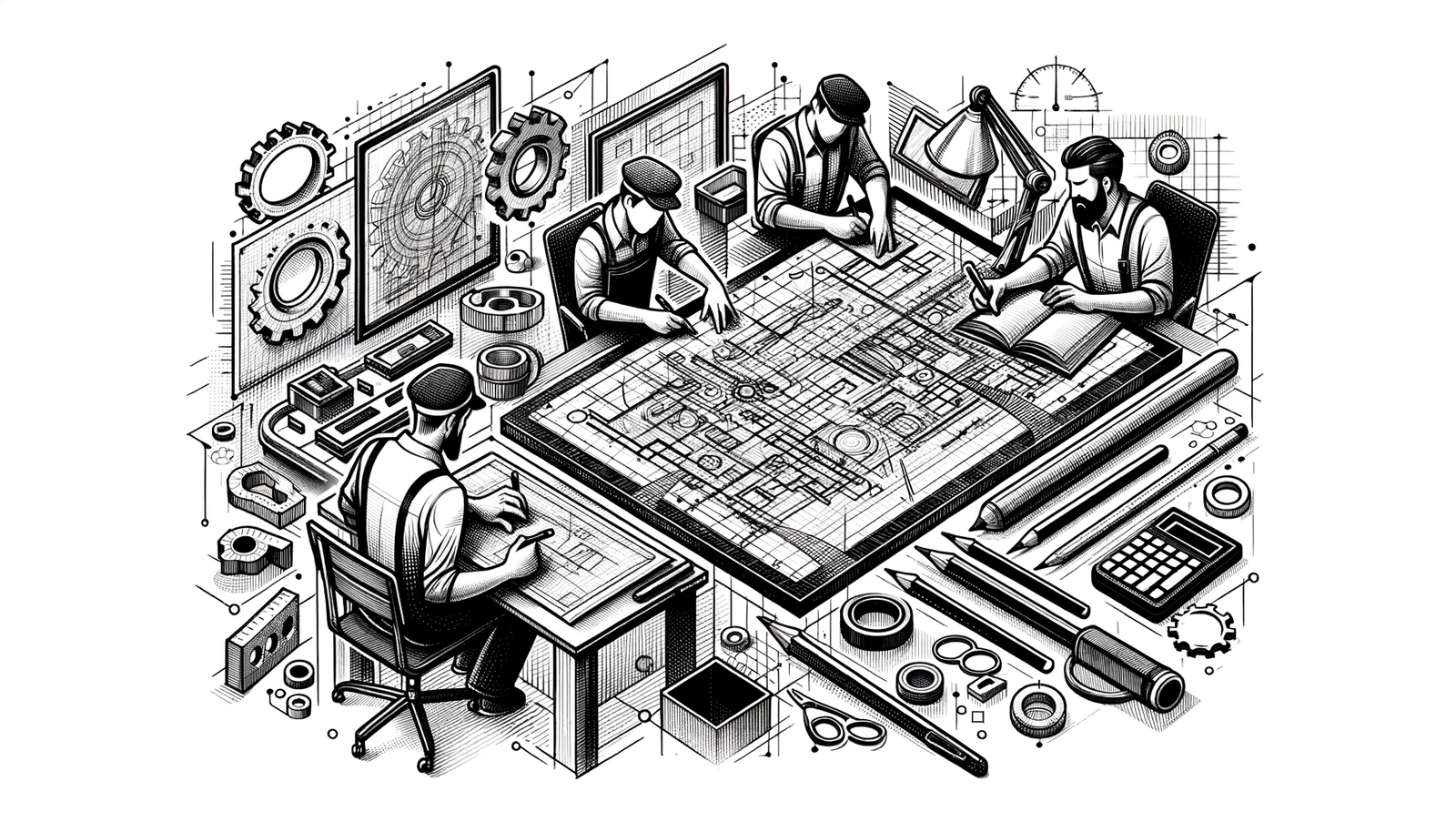


In today's competitive engineering and architectural industries, precision is paramount. Accurate designs not only ensure structural integrity and functionality but also save time and resources by minimizing errors. DraftSight emerges as a powerful drafting solution equipped with an extensive array of features specifically designed to enhance drafting precision and efficiency.
Utilize Precision Tools in DraftSight
Object Snaps (OSNAP)
One of the fundamental tools in DraftSight for achieving precision is the Object Snap feature, commonly known as OSNAP. By enabling OSNAP, drafters can snap the cursor to exact points on existing geometry, such as:
- Endpoints
- Midpoints
- Centers
- Intersections
This ensures that new elements are accurately aligned relative to existing ones.
Customizing OSNAP settings allows users to select frequently used snap points, streamlining the drafting process. For instance, if you often need to snap to midpoints and intersections, you can set OSNAP to prioritize those points, enhancing efficiency.
Grid and Snap Settings
Activating grid lines provides a visual guide, helping to align objects precisely on the drawing plane. DraftSight's grid can be customized to suit the scale and requirements of your project. By adjusting the snap increments, you gain finer control over object placement, allowing for meticulous alignment and spacing.
Polar Tracking and Ortho Mode
Polar Tracking is an invaluable tool when drawing at specific angles. By setting polar angles (e.g., every 30°, 45°, or 90°), the cursor movement is constrained to those angles, facilitating the creation of precise angled lines without manual calculations.
Ortho Mode restricts the cursor movement to horizontal and vertical directions. This is particularly useful when drawing orthogonal shapes or ensuring that lines are perfectly aligned along the primary axes.
These precision tools not only minimize errors but also significantly improve drafting efficiency by reducing the need for manual adjustments and corrections.
Effective Layer Management
Organize with Layers
Proper layer management is crucial in handling complex drawings. Creating layers for different object types – such as dimensions, annotations, and structural elements – helps in organizing the drawing systematically. Assigning distinct colors, linetypes, and lineweights to each layer enhances visual clarity, making it easier to differentiate between various components.
Layer Naming Conventions
Implementing a consistent and logical layer naming system is essential for easy identification and navigation. By using descriptive names, you can quickly locate and manipulate specific layers, streamlining the workflow.
Layer Controls
DraftSight offers various layer controls that enable users to manage complex drawings effectively. Utilizing features like layer visibility, locking, and freezing allows you to focus on specific aspects of the drawing without interference from other elements.
Proper layer management not only enhances clarity but also reduces the chance of misplacement or overlapping of objects, thereby improving the overall accuracy of the design.
Customize Templates and Standards
Create Custom Templates
Setting up custom templates is a proactive way to ensure consistency across multiple projects. By defining predefined:
- Units
- Scales
- Text styles
- Dimension styles
within a template, you establish a standard starting point for all your drawings. Including title blocks and standard annotations commonly used in your projects saves time and maintains uniformity.
Establish Drafting Standards
Defining and adhering to industry or organizational standards within your templates promotes consistency and professionalism. This includes standardized layers, fonts, symbols, and notation styles that align with accepted practices.
Use Block Libraries
Developing a library of standard blocks for recurrent elements such as:
- Fixtures
- Furniture
- Typical components
further enhances efficiency. By reusing these blocks, you not only save time but also maintain consistency throughout your drawings.
Customization ensures that every project adheres to set standards, significantly reducing discrepancies and errors, and saving valuable time during the drafting process.
Proper Annotation and Dimensioning Techniques
Annotation Scaling
Utilizing annotation scales in DraftSight ensures that annotations such as text, dimensions, and hatches maintain consistent size and readability across different viewport scales. This feature automatically adjusts annotation objects based on the scale of the viewport in which they appear, ensuring clarity in both full-scale drawings and scaled-down views.
Dimension Styles
Customizing dimension styles is essential for achieving a uniform appearance and ensuring accuracy in your measurements. Setting appropriate tolerances and precision levels that align with project requirements helps in conveying exact specifications. By standardizing dimension styles, you eliminate inconsistencies that could lead to misunderstandings or construction errors.
Text Styles and Formatting
Consistent use of text styles for all annotations enhances the professional look of your drawings. Applying clear formatting – such as font type, size, and justification – improves legibility and ensures that critical information is easily discernible.
Accurate annotations play a pivotal role in conveying essential design information. They serve as a communication bridge between the designer, clients, and contractors, making precision in this area non-negotiable.
Regular Drawing Audit and Maintenance
Audit Command
Running the Audit command in DraftSight is a proactive measure to detect and repair errors within your drawing. This function scans for anomalies or corrupt elements that could compromise the integrity of the file, allowing you to address issues promptly.
Purge Unused Elements
Using the Purge command helps maintain a clean drawing environment by removing unused layers, blocks, linetypes, and styles. This not only reduces the file size but also eliminates clutter that can cause confusion or slow down the software performance.
File Management Practices
Adopting robust file management practices is essential for data integrity, including:
- Regularly saving and backing up your drawings
- Maintaining version control for tracking changes and revisions
These practices prevent data loss due to unforeseen circumstances like software crashes or hardware failures. Maintaining version control aids in project management and allows for easy rollback if necessary.
Keeping drawings clean and well-maintained prevents corruption, enhances performance, and ensures that the files remain reliable references throughout the project lifecycle.
Conclusion
Incorporating these best practices within DraftSight significantly enhances design accuracy and efficiency. Utilizing precision tools like OSNAP, grid settings, and polar tracking minimizes errors and improves drafting speed. Effective layer management and customized templates promote consistency and clarity across all projects. Proper annotation and dimensioning techniques ensure that the critical design information is conveyed accurately. Regular drawing audits and diligent file management safeguard your work from potential issues.
By adopting these techniques, professionals can elevate their drafting tasks, leading to improved productivity and quality. Continuous learning and adaptation to new features within DraftSight will further contribute to ongoing improvement, keeping you at the forefront of the industry.
Also in Design News