Your Cart is Empty


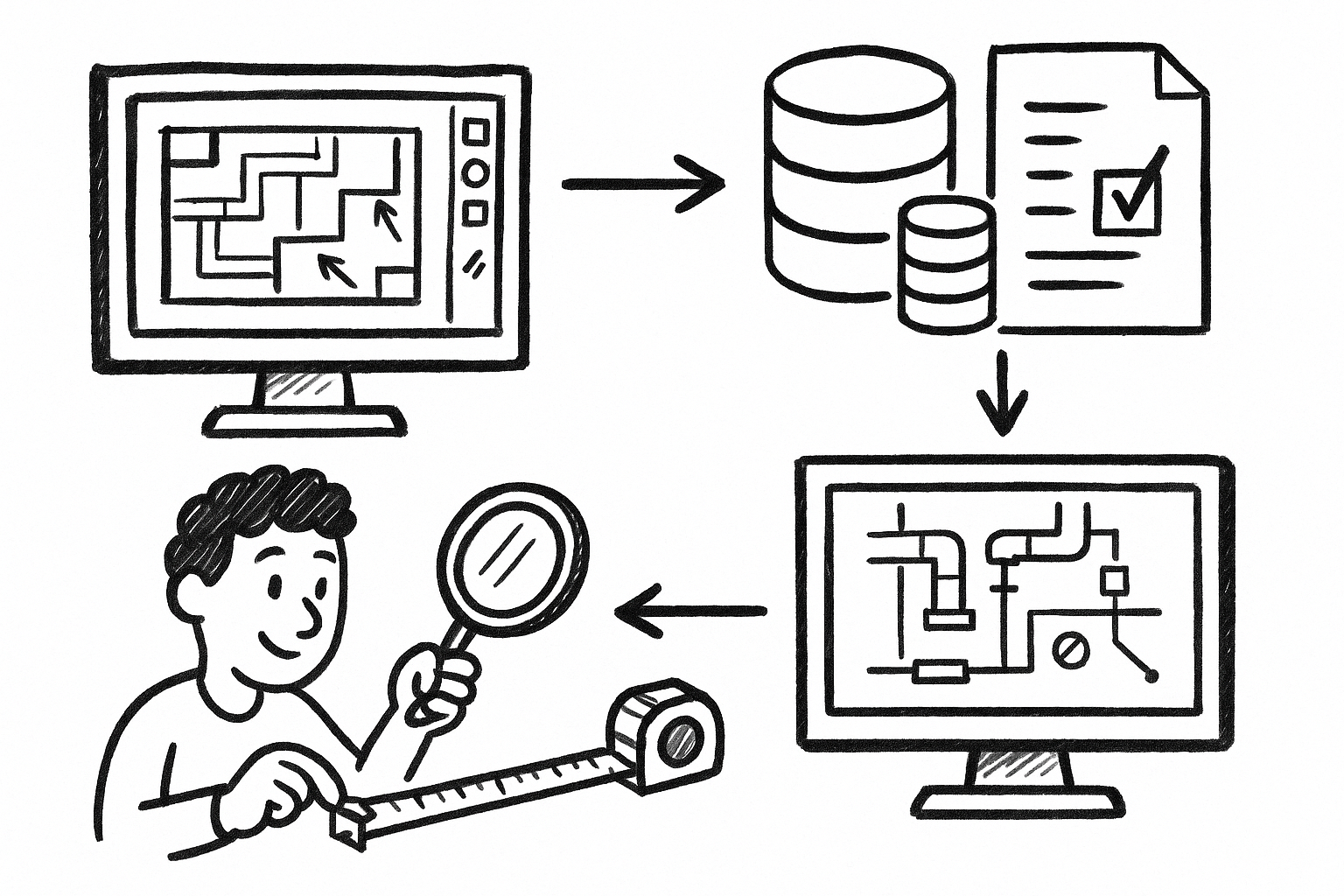


In Revu, the fastest way to elevate Electrical/MEP takeoffs from marks on a page to actionable data is to treat every stroke as a governed datum. The lever is **custom measurements**—standardized tools tied to a shared taxonomy so quantities are consistent, repeatable, and traceable across teams and revisions.
- Why custom measurements matter
- Repeatability: identical geometry produces identical quantities and metadata.
- Speed: prebuilt tools eliminate ad‑hoc configuration and rework.
- Auditability: standardized Subjects, columns, and statuses create a clear trail from markup to report.
- Assumptions for the workflow
- Sheets are calibrated and scales are consistent or properly viewported.
- Discipline PDFs are layered or separated for clean filtering.
- An agreed measurement taxonomy defines what is counted vs. measured.
Build a disciplined Measurement Library with Custom Tools and proper Subject/Labels
A deliberate, shared Measurement Library is the backbone of takeoff quality. Create it before any sheet is marked so every contributor pulls from the same set of tools, naming conventions, and metadata. The goal is a library that encodes discipline, system, and size, while producing a Markups List that reads like a structured dataset rather than a pile of notes.
Standardize the measurement set
Coordinate a company- or project-wide set that covers expected MEP scopes. Start with breadth, then refine detail and variants by phase.
- Electrical: conduit runs, cable tray runs, feeder lengths, device counts, homeruns, panelboard schedules (as link targets for cross-references).
- Mechanical: duct mains/branches, pipe mains/branches, insulation, equipment pads, valves/fittings.
- Plumbing/FP: risers, branch piping, heads, cleanouts, hangers where applicable.
Capture both linear infrastructure and discrete components so downstream estimating systems can assemble labor and material with minimal translation.
Create custom measurement tools and save them to the Tool Chest
Use Length, Area, Polyline, and Count tools. For each tool, name it and set properties so both drawing visuals and data outputs are unambiguous:
- Consistent naming examples:
ELEC_Conduit_3/4"_EMT,MECH_Duct_Rect_24x12,PLMB_Pipe_2"_Copper. - Set the Subject as the primary filter key: discipline + system + size (e.g.,
ELEC | Normal | Conduit 3/4" EMT). This produces clean grouping and pivoting in the Markups List. - Use the Label for human-readable context (e.g., zone or feature) without breaking your Subject grouping.
Configure custom columns for estimating metadata
Custom columns transform a markup into a bill-of-materials row. Establish project defaults and lock them into your Profile so everyone exports the same headers:
- System/Service: Normal, Emergency, Fire Alarm, CHW, HWS, Gas.
- Spec/Material: EMT, PVC, IMC; SCH40, Type L; Rigid Fiberglass, EPDM.
- Diameter/Size, insulation thickness, pressure class, elevation/zone.
- Optional controls: Phase, Alternate/Add, Level, Area/Space, Status.
When possible, pre-fill defaults in the tool properties (e.g., a CHW_Pipe_2" tool sets System=CHW, Material=Steel, Insul=1.5"). This avoids data entry drift and accelerates markups.
Visual strategy for auditing
Drawings must be scannable at a glance. Encode meaning into visuals so an overlay reveals coverage and conflicts immediately:
- Color encodes system (e.g., Normal power blue, Emergency red, FA magenta, CHW blue-green, HWS orange).
- Line weight encodes size bands (small/medium/large).
- Opacity encodes status (Estimate=40%, Verified=70%, Revised=100%).
- Symbols for Counts should be legible at print scale; avoid ambiguous shapes across disciplines.
These conventions, coupled with Subject discipline, keep the Markups List tidy and make PDF overlays a viable QA surface.
Use Dynamic Scale and Viewports to handle mixed-scale MEP sheets without rework
MEP plan sets frequently mix scales: overall plans, enlarged rooms, details. Revu’s calibration and Viewports allow one sheet to host multiple accurate takeoffs, provided you enforce a validation rhythm.
Calibrate once, then validate continuously
Initial calibration must be followed by recurring checks, especially when swapping in revised sheets:
- Confirm scale using known dimensions: grid spacing, door widths, or equipment footprints. Avoid relying on a single short segment.
- Create a distinct “scale validation” Length tool (e.g., 10’ line in bright yellow) and place one per sheet to spot drift instantly.
- When you replace PDFs, re-validate calibration; the page index may match while vectors or origin have shifted.
Apply multiple scales via Viewports
Detail bubbles that read 1:20 within a 1:100 plan are prime error zones. Draw viewport regions over each detail and assign the correct scale. Label and lock them so they cannot be nudged during takeoff:
- Label format:
MECH ROOM | DETAIL 1:20orELECTRICAL RISER | 3/8"=1'-0". - Lock the region once set; if a detail moves between revisions, unlocking should be a deliberate act logged via Status or Reply.
Create scale-aware tools
If your process supports it, duplicate high-volume tools per common scales and train teams to select scale-matched variants. This reduces on-the-fly recalibration risks on large, multi-scale plan sets. Pair this with a short SOP governing when to place a viewport versus when to use a pre-scaled tool.
QA checklist to prevent silent scaling errors
- Lock the sheet calibration immediately after setup.
- Require a validation measurement on every sheet before takeoff begins.
- Use Status workflow in the Markups List: Pending QA → Checked → Approved. Filter exports to exclude items not Approved.
Scaling mistakes are costly because they silently bias every dependent quantity. A light, visible ritual around scale verification is one of the highest ROI controls you can implement.
Advanced linear takeoff: Polylength and custom formulas for conduit/duct/pipe with wastage, bends, and supports
Linear infrastructure is rarely straight. Trunk lines jog around structure, branch lines weave through zones, and fittings add length, labor, and accessories. Use Polyline Length for realistic routing and compute procurement-ready quantities with custom formulas in the Markups List.
Trace with Polyline Length for realistic paths
Polyline Length captures routing better than simple Length. Snap to endpoints and centerlines, trace along the intended run, and keep vertices as simple as possible to avoid noisy over-measurement while preserving accuracy. Turn on alignment and snap options that favor orthogonal segments for duct and tray layouts; for piping, allow smoother vertex placement where design shows arcs.
Add custom columns for quantity intelligence
Augment each run with the drivers that convert measured length into install and buy quantities:
- Wastage factor (%), defaulted by material or phase.
- Bend/offset allowance (ft or m per bend) and a Bend_Count input.
- Support spacing (hangers every X ft) to compute hanger counts.
Example formula columns:
Adj_Length = Measured_Length * (1 + Waste%) + (Bend_Count * Bend_Allowance)Hanger_Qty = CEILING(Adj_Length / Support_Spacing)
These calculations, stored with each markup, make the Markups List a first-class dataset. They also make your exports ingestion-ready for estimating and ERP systems that expect adjusted quantities, not raw geometry.
Capture fittings and transitions without double-counting
Ambiguity around fittings is a classic error source. Separate geometry from discrete items and define rules that everyone understands:
- Run length tools measure continuous conduit/duct/pipe and exclude fitting lengths unless your estimating standard demands inclusion.
- Fittings count tools (e.g., 90° elbows, tees, reducers) are placed at nodes or transitions with size-aware Subjects for clean grouping.
- Document the logic: whether transitions are captured as counts only or as both count and added allowance within
Adj_Length.
Turn linear measurements into system-specific assemblies
In practice, each measured run implies accessories. Encode those assumptions into tool variants so assembly quantities drop out automatically:
-
CHW_Pipe_2"_Steelincludes insulation thickness, jacketing, vapor barrier, and default hanger spacing. -
ELEC_Conduit_1"_EMTincludes couplings and straps at interval assumptions and a waste percentage reflective of stick lengths.
These variants let the same geometry produce different downstream totals, depending on system and spec, without re-tracing. The more rigor you front-load into tool metadata, the less manual reconciliation you need later.
Lock down measurement behavior
Once you’ve proven a tool, freeze it so behavior is predictable and repeatable across users and weeks:
- Set line style, color, and opacity consistent with your visual audit key.
- Set appropriate snap behavior and units precision for the discipline.
- Enable “Add to Markups List” and configure columns so every trace produces a complete dataset.
- Use “Reuse” mode on commonly repeated elements for rapid markup without constant re-selection.
Area and volume takeoffs with custom measurements for insulation, shaft/chase allowances, and equipment pads
Not all quantities are linear. Area and derived coverage measurements are essential for insulation, coatings, and spatial allowances that become indirect cost drivers. Use custom measurement types and formulas to translate drawing geometry into the units procurement and field teams expect.
Use Area measurements for surface-based quantities
Where geometry and documentation permit, measure surface-based work directly:
- Duct wrap insulation via duct surface area approximations; track by system and pressure class for cost stratification.
- Mechanical room coatings, housekeeping pads, equipment plinths, and access/service zones.
For duct and pipe insulation, consider separate tools for exposed vs. concealed runs with different waste factors and jacket types.
Translate area into estimating units with custom columns
Area alone is rarely the buy unit. Add conversion columns so exports carry order-ready quantities:
- Insulation board count:
Board_Qty = CEILING(Area / Net_Sheet_Coverage) * (1 + Waste%). - Firestopping by penetration area, tagged by system and rating to route to the correct spec section.
Keep the geometry in Area units while your columns drive the buy units; this avoids unit-conversion confusion once quantities hit estimating.
Hybrid approach for penetrations and sleeves
Penetrations are both areas and discrete counts. Combine a penetration-zone Area tool with size-rated Count tools so reconciliation is deliberate:
- Counts by size/rating:
Sleeve_4",Sleeve_6" FR-Rated,Core_8". - An Area polygon over the “penetration corridor” flags where counts must be verified, making it easy to catch omissions on overlays.
Handle multi-level and stacked conditions
Prevent a common roll-up error: quantities from different floors merged into one total. Use the Level field (custom column) or Spaces/Layers, and color-code Level when helpful. Constrain counts and areas to Spaces where provided so aggregation by Level remains accurate even across combined plan sheets.
Audit with transparent overlays
Set Area fills with transparency and heatmap-like colors. When you overlay multiple systems or revisions, gaps and overlaps become visually obvious. Sort the Markups List by Level and System and scan for outliers (e.g., an unusually large insulation area on a small plan)—these are typically mis-scaled regions, misassigned Subjects, or accidental double coverage.
Reporting and handoff: Markups List as a structured dataset, not just a summary
When built with discipline, the Markups List is a schema—not a casual report. Design it backward from what estimating, procurement, and VDC coordination need so data flows without manual massage.
Shape the schema to match downstream systems
Agree on column names and value vocabularies before anyone starts. Common fields include:
- Spec section, assembly code, system/service, size, material/spec, pressure class, insulation, level/zone/space, phase, alternates/adds, status.
- Context fields: sheet name, sheet number, page index, and a hyperlink back to the markup for traceability.
Constrain values with dropdown lists where possible. Free text should be the exception; the more you constrain, the easier it is to group, pivot, and import.
Use filters, groups, and status to control exports
Not all markups should export at all times. Drive exports with curated views:
- Filter by Design Intent vs. Bid Takeoff vs. As‑Built Verified.
- Group by System → Level → Type/Size to mirror how downstream teams buy and track.
- Use Status to stage approval gates and to isolate “Changed” items during addenda cycles.
Export strategies that preserve context
Deliver both machine-friendly data and human QA records:
-
CSV/Excel exports for estimating and ERP import, including all custom columns and computed fields like
Adj_LengthandHanger_Qty. - PDF summaries for QA with legends, color keys, and page-linked markups for quick spot checks.
Always include sheet identifiers and markup hyperlinks so reviewers can jump from a row to its exact drawing context.
Change management without starting over
Revisions are inevitable; rework is optional. Use Revu’s communication fields to track deltas as part of the dataset:
- Use Reply/Comments to capture rationale (e.g., “RFI-12 updated duct size”).
- Flag deltas with Status and limit exports to Changed during addenda review. This isolates variance and accelerates negotiations.
- On sheet replacements, maintain the same Subjects and tool names so rollups remain comparable across versions.
Close-the-loop QA
Before handoff, compare totals against design cues that act as independent checks:
- Electrical: panel schedules, circuit counts, and homerun tags should reconcile to device counts and conduit runs.
- Mechanical: equipment schedules and riser diagrams should align with mains/branches and valve/fitting counts.
- Plumbing/FP: fixture counts, head densities, and riser data should align with branch piping and sleeve counts.
Generate a “missing scope” list by filtering for sheets or Spaces with zero counts of expected elements. This lightweight step catches forgotten areas and protects your bid from silent scope gaps.
Conclusion
The highest leverage in Revu comes from treating custom measurements as a governed library: calibrated geometry paired with consistent metadata and formula-driven quantities. When teams work from a shared Measurement Library, enforce Dynamic Scale controls with Viewports, and compute procurement-ready numbers with custom formulas, the payoff is more than speed. You produce defensible, revision-tolerant datasets that flow cleanly into estimating, procurement, and coordination—reducing risk while improving clarity across the project lifecycle.