Your Cart is Empty



Block in believable color schemes in minutes by converting Polygroups straight into Polypaint. It’s a fast, non-destructive way to test palettes, drive selections, and prep clean textures later.
-
Prep your Polygroups:
- Tool > Polygroups > Auto Groups for multi-part meshes.
- Polygroups > Group by Normals to segment by angle; adjust Max Angle for sensitivity.
- Use Slice Curve or Group Visible for manual control. From Masking turns painted masks into groups.
-
Convert to Polypaint:
- Tool > Polypaint > turn Colorize ON.
- Click From Polygroups to assign distinct colors instantly.
- Tip: Repeat From Polygroups for a fresh randomization until the palette feels right.
-
Quickly refine color blocks:
- Ctrl+Shift-click a Polygroup to isolate it, set a color, then Color > FillObject with RGB (ZAdd/ZSub off).
- Want color only (no material fill)? Disable M before FillObject.
- Brush > Auto Masking > Mask By Polygroups (50–100) to keep paint cleanly inside group borders.
-
Keep quality high:
- Polypaint is per-vertex; if colors look chunky, subdivide before painting for more vertex density.
- Use Layers to iterate: create a “Palette” layer to test variations non-destructively.
-
Turn color blocks into textures:
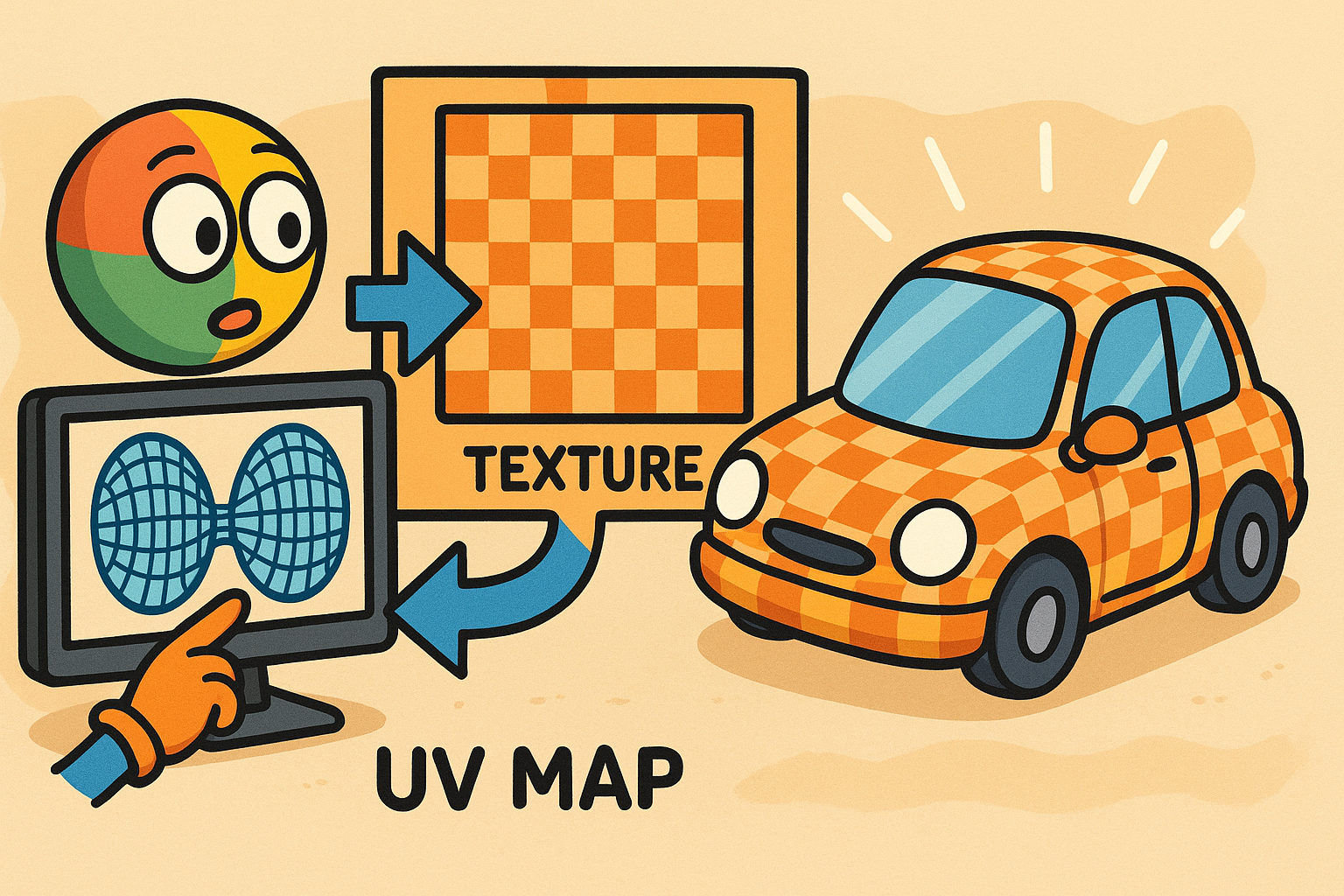
- Create UVs (Zplugin > UV Master) or your preferred method.
- Tool > Texture Map > Create > New From Polypaint to bake vertex color to a texture map.
- Zplugin > Multi Map Exporter to output Color, Normal, Displacement in one pass.
-
Production tips:
- Use Polygroups as selection drivers for targeted masking, deformation, and surface noise.
- Project color between meshes with SubTool > Project > Project All (enable RGB).
- Decimation Master can preserve Polypaint; enable its Polypaint option before decimating.
-
Troubleshooting:
- From Polygroups does nothing? Ensure Tool > Polypaint > Colorize is ON and you’re using a PolyMesh3D.
- Random colors too similar? Re-run From Polygroups or manually FillObject per group.
- Jagged borders? Increase vertex density or enable Mask By Polygroups while painting edges.
This approach is ideal for concept look-dev, client reviews, and UV-less previews—speed first, with a clean path to final textures later. For the latest Maxon ZBrush and add-ons, check out NOVEDGE. Need pipelines that include Multi Map Exporter, decimation, and rendering tools? Explore bundles and licensing options at NOVEDGE or ask their team for tailored recommendations. If you iterate between DCCs, pairing ZBrush with bridge tools and renderers available through NOVEDGE can streamline asset turnover and approvals.