Your Cart is Empty


Rhino 3D Tip: Generating Accurate 2D Drawings from 3D Models in Rhino 3D
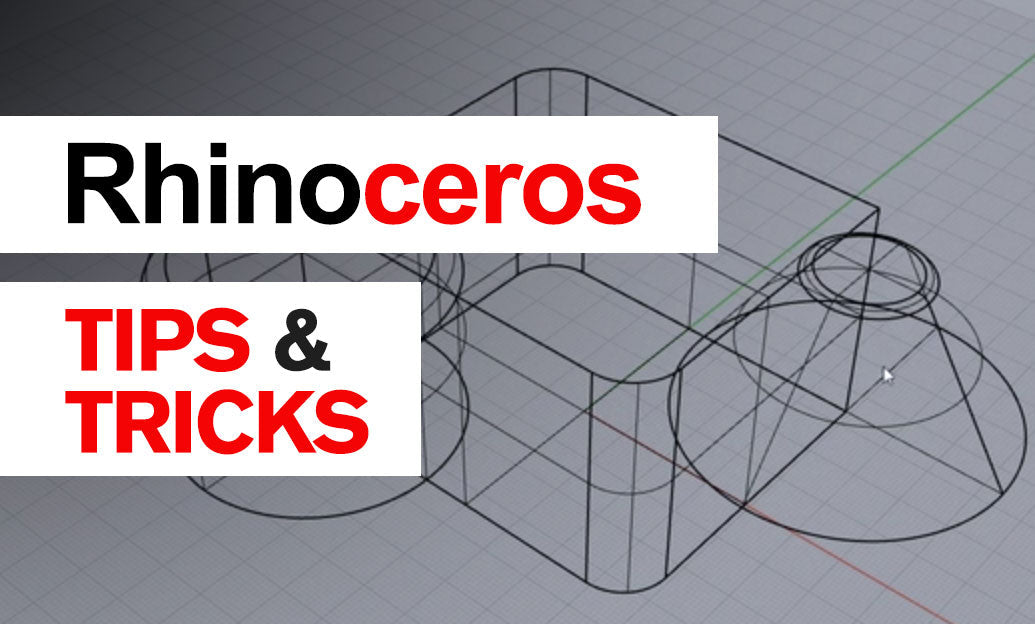

Creating precise 2D drawings from your 3D models is a crucial part of the design and documentation process in Rhino 3D. This workflow allows for accurate communication of design intent, especially when sharing with clients or preparing for fabrication.
Here are some professional tips to help you generate accurate 2D drawings from your 3D models in Rhino:
Optimize Your 3D Model Before Converting
Before converting your 3D model to 2D drawings, it's essential to ensure your model is clean and well-organized.
-
Check for Geometry Errors: Use the
CheckandSelBadObjectscommands to identify and fix any problematic geometry. - Layer Organization: Organize your model into meaningful layers. This will help in managing visibility and assigning line types later on.
- Simplify Where Possible: Remove any unnecessary details that won't contribute to the 2D representation.
Using the Make2D Command Effectively
The Make2D command is Rhino's primary tool for generating 2D drawings from 3D geometry.
- Select the objects you wish to include in the drawing.
- Initiate the
Make2Dcommand. - In the Make2D dialog, configure the following settings:
- Views: Choose the appropriate view projections (Top, Front, Right, Perspective) based on your requirements.
-
Hidden Line Calculation: Enable
Show tangent edgesandMaintain source layersfor better clarity and organization. - Export Options: Decide whether to group output and how to handle visible and hidden lines.
- Click
OKto generate the 2D drawing. Rhino will create new geometry representing the projected views.
Managing the Resulting 2D Geometry
Once you've generated the 2D drawings, it's important to manage the output effectively.
- Layers: The resulting geometry will be placed on new layers. Use the Layer Manager to organize and control visibility.
- Line Types and Weights: Assign different line types (solid, dashed) and line weights to distinguish between visible and hidden edges.
-
Cleanup: Use commands like
SimplifyCrvandJointo clean up any fragmented curves.
Adding Annotations and Dimensions
Annotations and dimensions enhance the utility of your 2D drawings.
- Dimensioning: Use the dimension tools to add precise measurements.
-
Text Annotations: Use the
TextandLeadercommands to add notes and labels. -
Hatching: Apply hatches to section cuts or differentiate materials using the
Hatchcommand. - Annotation Styles: Set up consistent annotation styles in the Annotation Styles panel for uniformity.
Preparing for Export or Printing
After finalizing your 2D drawings, prepare them for export or printing.
-
Scaling: Set up layouts with appropriate scaling factors using the
Layoutfeature. - Title Blocks: Include title blocks, company logos, and other standard documentation elements.
- Print Settings: Configure print settings to ensure line weights and colors are correctly represented.
- Export Formats: Export drawings to formats like PDF, DWG, or DXF for sharing or further editing.
Utilizing Display Modes
Rhino offers various display modes to enhance the visual quality of your 2D drawings.
- Technical Display Mode: Use the Technical display mode to create vector-style views within Rhino.
- Custom Display Modes: Create custom display modes to suit your presentation needs.
-
Capture to File: Use
ViewCaptureToFileorPrintcommands to save high-resolution images of your 2D drawings.
Advanced Tips
For more complex projects, consider these advanced techniques:
- Using Grasshopper: Automate the creation of 2D drawings with Grasshopper for parametric control.
- Third-Party Plugins: Explore plugins like VisualARQ for enhanced documentation features.
- Scripting: Utilize RhinoScript or Python scripting to streamline repetitive tasks.
By following these steps, you can produce accurate and professional 2D drawings from your 3D models in Rhino 3D.
Enhance your Rhino experience with the latest plugins and tools available at NOVEDGE, the leading online store for design software.
You can find all the Rhino products on the NOVEDGE web site at this page.
Also in Design News