Your Cart is Empty


CAE in Flow: 5 SpaceMouse Techniques for Faster Pre- and Post-Processing Navigation, Selection, and QA
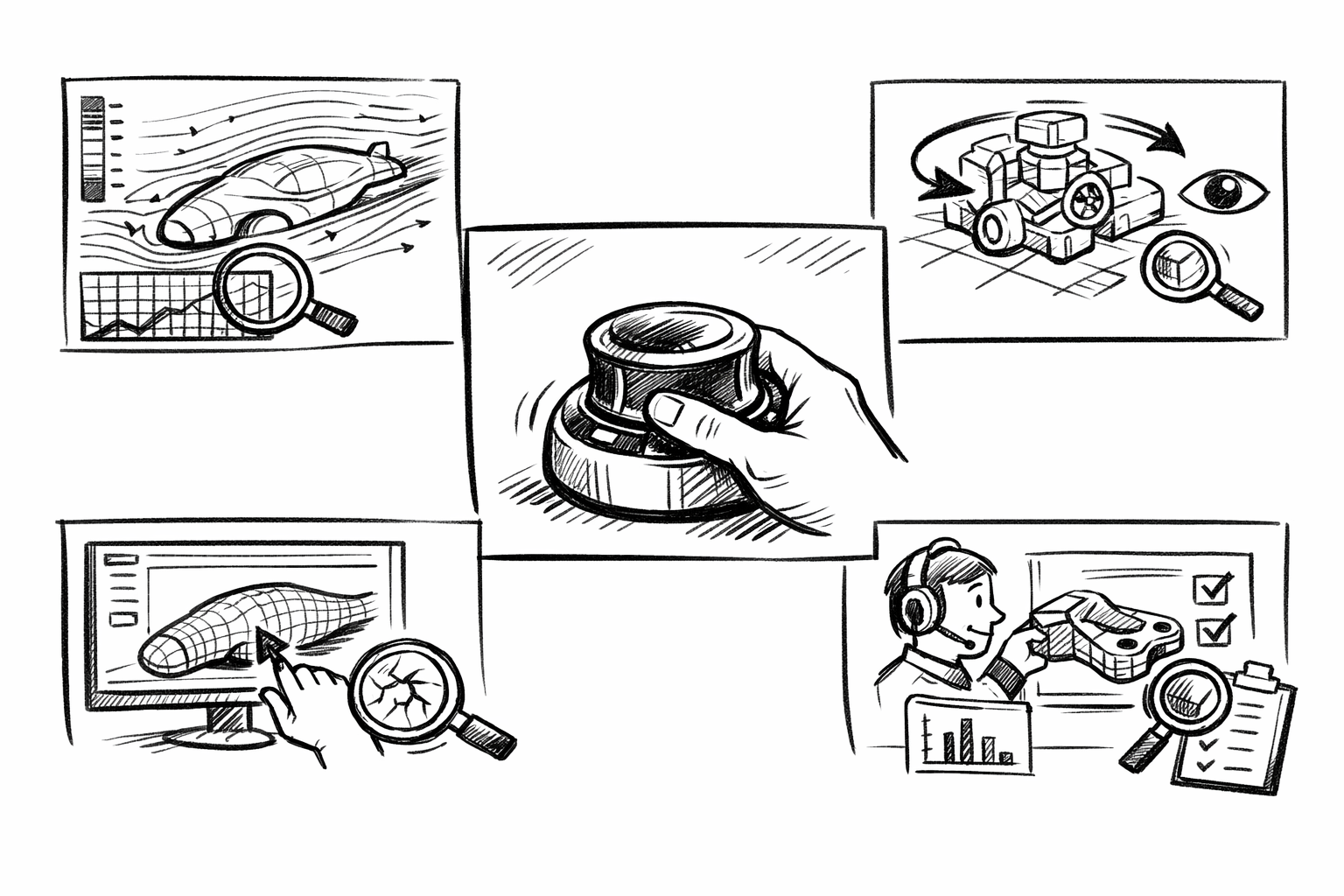


Simulation pre- and post-processing is unusually navigation-heavy. You are constantly interrogating geometry, checking mesh quality, authoring boundary conditions, and exploring results that may span multiple parts, steps, and derived fields. In that environment, the smallest camera inefficiency compounds into missed details, misapplied selections, and slower verification.
The core premise is simple: reducing view management friction increases the engineer’s attention on physics, setup correctness, and insight extraction. This article focuses on five SpaceMouse-driven functionalities that materially change daily CAE workflows across CAD/CAE viewers, pre-processors, and post tools.
True 6-DoF navigation for continuous context (not a sequence of camera commands)
A traditional mouse-centric workflow often turns navigation into a sequence of discrete operations: rotate, then pan, then zoom, then rotate again. A SpaceMouse’s 6 degrees of freedom (translation and rotation simultaneously) turns that into continuous motion, allowing you to maintain context while doing real work.
What it enables in pre-processing
Pre-processing is full of “keep this feature in view while I do something precise” moments. With 6-DoF navigation you can:
- Pan/zoom/rotate simultaneously to keep target faces, edges, and reference features visible while selecting entities or defining loads and constraints.
- Inspect tight regions (fillets, ribs, thin walls, small gaps) without losing your sense of orientation or “where you are” in the assembly.
- Follow a geometric chain (edge loop, flange, rib network, bracket features) while authoring partitions, named selections, or connector definitions.
In practice, this often means you stop “fighting” the camera to keep an obscured face visible. Instead, you continuously adjust view angle as you select, which is especially valuable when boundary condition authoring requires multiple picks across adjacent faces with similar appearance.
What it enables in post-processing
Post-processing can be even more demanding because the scene is visually dense: deformed shapes, contour plots, vectors, isosurfaces, cut planes, annotations, and multiple part instances. 6-DoF navigation enables:
- Seamless orbiting through complex result scenes—multi-part assemblies, embedded sections, isosurfaces—without camera “stutter” and re-centering rituals.
- Continuous viewpoint adjustments while tracking hotspots across time steps or load cases, keeping your eye on a stress riser as the response evolves.
- More natural inspection of internal features when used alongside clipping or section tools, because you can “steer” the view while the cut reveals new information.
Why it matters
The functional impact is not cinematic navigation; it is reduced interaction overhead:
- Fewer mode switches between rotate/pan/zoom tools and fewer interruptions caused by picking the wrong navigation tool in the middle of a setup step.
- Lower cognitive overhead as camera motion becomes muscle memory, preserving mental focus on model intent, contact logic, boundary conditions, and the physics you are validating.
That cognitive effect is easy to underestimate. When you are diagnosing a suspicious stress pattern, checking whether a constraint is over-restrictive, or verifying contact directionality, the last thing you want is a camera workflow that fragments your attention.
Dominant-axis and precision control to prevent disorientation and improve repeatability
6-DoF freedom is powerful, but it can also be “too free” in dense scenes—especially when you intend to pan slightly but accidentally introduce rotation, or when a subtle twist leaves you disoriented. Dominant-axis and precision controls address that by shaping input behavior into something predictable and repeatable.
Key SpaceMouse behaviors to exploit
Most SpaceMouse ecosystems provide several controls worth treating as first-class workflow tools rather than optional settings:
- Dominant-axis filtering to bias motion toward the direction you intended (rotate or pan) when your hand input contains mixed micro-motions. This is particularly helpful in cluttered assemblies where an unintended rotation can hide the exact face you were targeting.
- Speed control or precision mode for micro-adjustments near small features, contact pairs, fasteners, and thin sections where camera overshoot causes repeated re-approach.
- Horizon lock or rotation lock options to maintain a stable “up” direction during extended review sessions, preventing the gradual “camera tumble” that makes everything feel unfamiliar after a few minutes.
Pre-processing use cases
Pre-processing accuracy is often selection accuracy. Dominant-axis behavior and precision mode directly support that:
- Accurately targeting tiny faces and edges for constraints, loads, connectors, contacts, local mesh controls, and partitions.
- Aligning views for clean defeaturing or partitioning decisions without overshooting, drifting, or rotating off-axis as you zoom in.
- Inspecting contact regions where a barely perceptible gap or interference matters; precision mode helps you “walk in” to the region without jumping past it.
A practical example: when defining contact pairs on complex cast geometry, you often need to confirm that the intended faces are truly the active side and that you are not accidentally selecting a neighboring fillet face. With dominant-axis filtering, you can pan laterally to confirm adjacency without unintentionally rotating into a view where the face IDs or selection highlight become ambiguous.
Post-processing use cases
Post-processing is where repeatability becomes part of the engineering record. You may need to revisit the same feature from the same general perspective multiple times—during convergence checks, peer review, or when reconciling results across runs. Dominant-axis and precision control enables:
- Controlled, repeatable fly-bys along critical paths (weld toes, bolted joints, bonded seams, bracket transitions) for review and sign-off.
- Avoiding camera tumble that can hide subtle gradient changes in contours—particularly when evaluating whether a hotspot is localized (potential singularity) or part of a broader load path.
When a contour plot is visually borderline—slight shifts in peak location, or small differences between principal stress and von Mises—camera stability matters more than people expect. Stable review geometry helps you separate real physics from visualization artifacts.
Fit View, Standard Views, and quick view recalls for instant model re-acquisition
Even with excellent free navigation, you still need “hard resets” and repeatable anchors. Fit, standard views, and saved views become high-frequency reflexes in CAE: they re-acquire the model instantly, reduce confusion, and enforce consistency across iterative changes.
Core view operations that become high-frequency reflexes
- Fit all and zoom-to-selection to quickly recover from deep zoom states or after hiding/showing parts and results.
- One-tap standard views (top/front/right/isometric) for immediate reorientation, especially before committing an edit.
- Custom view slots (saved cameras) to return to analysis-critical regions without “re-finding” them each time.
When these commands are on the device (buttons or a radial menu), they stop being deliberate actions and become a lightweight part of your verification rhythm: edit something, fit to confirm, snap to standard view, continue.
Pre-processing impacts
Pre-processing involves constant alternation between global and local work:
- Faster iteration between global setup (materials, sets, steps, outputs) and local edits (contacts, seeds, mesh refinement) because you can instantly return to a known camera frame after visiting dialog-heavy setup areas.
- Reduced misapplication risk by snapping to a known view before committing a constraint or load. That moment of visual confirmation often prevents boundary conditions being applied to the wrong side of a thin wall or to a similarly shaped neighboring face.
The “zoom-to-selection” behavior is especially valuable when working with named selections or sets. If a set was created earlier or imported, zooming to it is an immediate sanity check: does the set contain what you think it contains? Are faces missing? Did it accidentally include an adjacent blend face that will skew load distribution or contact behavior?
Post-processing impacts
For results work, quick view recall supports both speed and rigor:
- Rapid toggling between overview and detail views when validating convergence behavior, investigating stress singularities, or checking for boundary artifacts near constraints and load introductions.
- Consistent viewpoints for reports and comparisons by returning to the same camera frame across design variants and solver runs, reducing the chance that a “difference” is simply a viewpoint illusion.
Consistency matters when you are comparing two runs with different mesh densities, contact settings, or material models. If the camera is not consistent, it becomes harder to judge whether a hotspot moved meaningfully or whether you are simply viewing a different slice of the geometry.
Application commands and macros on device: turning navigation time into setup and QA throughput
The biggest leap happens when the SpaceMouse stops being a navigation accessory and becomes a command surface. In CAE, many operations are repeated dozens of times per session: toggling section cuts, isolating parts, switching result quantities, probing min/max, or turning mesh lines on and off. Mapping these to device buttons or radial menus translates directly into throughput and consistency.
Mapping strategy (device buttons and radial menus)
A strong mapping strategy focuses on commands that are both frequent and interruptive when accessed from menus. Good candidates include:
- Section cut on/off, clipping plane advance/retreat, and toggling between multiple predefined cutting planes.
- Hide/show/isolate selections, transparency toggle, and “show only” to focus on specific components or interfaces.
- Mesh display toggles: element edges, surface mesh visibility, and overlays for mesh quality metrics (skewness, aspect ratio, Jacobian-related indicators, warpage, or whatever your tool exposes).
- Result quantity switching (von Mises, principal stresses, displacement magnitude, contact pressure), plus min/max probes and annotations.
These mappings reduce context-switching cost: you stay in the scene and keep your eyes on the model while your hands execute rapid, consistent sequences.
Pre-processing workflow accelerators
Pre-processing is dominated by inspect/modify/re-inspect loops. On-device commands accelerate these loops and make them more systematic:
- Inspect → modify → re-inspect for mesh refinement: toggle mesh edges, apply local sizing, re-check quality overlay, and immediately confirm improvement.
- Contact pair verification: isolate the two bodies, turn on face normals or contact direction visualization (if available), step through contact sets, then restore full view.
- Set membership checks: zoom to selection, isolate, confirm completeness, then toggle back—without breaking your flow to hunt through UI panels.
One-hand navigation plus one-hand command execution sustains momentum during model build. This matters when setup complexity is high: multiple load steps, staged contacts, nonlinear materials, connector definitions, or local submodel regions. The more fragmented the UI interaction becomes, the higher the chance that a small detail is missed.
Post-processing workflow accelerators
In results work, on-device commands create a “review instrument” that supports rapid hypothesis testing:
- Rapid sectioning and clipping to validate internal stress paths, contact pressure distributions, and whether a hotspot is superficial or through-thickness.
- Faster creation of review-ready snapshots by standardizing a sequence: recall view, toggle annotations, set contour quantity, show min/max, and capture.
- Viewpoint-consistent comparisons across load cases or time steps by mapping next/previous step, play/pause (where supported), and quick return to saved views.
The compounding effect is important: post-processing often involves checking many artifacts—constraint-induced peaks, contact patch stability, element formulation sensitivity, and mesh transition behavior. When switching between these checks is frictionless, more checks get done, and the checks are more repeatable.
Two-handed interaction model: SpaceMouse plus mouse or tablet for simultaneous view and selection
The two-handed model is the “hidden” productivity upgrade. The left hand continuously manages the camera while the right hand selects entities, edits parameters, drags handles, or paints selections. This decouples finding from acting, which is especially valuable in crowded CAE scenes.
The functional shift
With a conventional setup, the same hand alternates between navigating and selecting. That forces a stop-start rhythm: navigate, stop, select, navigate, stop. Two-handed interaction turns this into a smooth, continuous loop:
- Left hand: continuous camera control to keep the target visible and framed.
- Right hand: selection and action—choosing faces, editing values, moving cut planes, placing probes, or confirming dialogs.
This shift is not about raw speed; it is about reducing interruptions that break concentration. When you continuously adjust the view as you select, you naturally avoid occlusions and reduce rework caused by mis-clicks.
Pre-processing advantages
In pre-processing, dense assemblies and subtle geometric boundaries are common. Two-handed interaction improves both efficiency and correctness:
- More efficient entity selection in crowded assemblies (contacts, connectors, constraints) while continuously adjusting the view to avoid occlusion.
- Improved accuracy when assigning boundary conditions to the correct region, especially on thin parts where the inside and outside faces are close and easy to confuse.
- Smoother creation of partitions and local mesh control regions because you can maintain an optimal view angle while picking successive edges or sketch references.
A practical scenario is contact setup in an assembly where surfaces are nearly coincident. You may need to slightly translate the camera, rotate a few degrees, and zoom in while selecting. Doing that without breaking selection flow reduces the chance of selecting the wrong “partner” surface or missing a small face that should be included in the contact region.
Post-processing advantages
In results exploration, two-handed control supports continuous investigation and clearer communication:
- Continuous navigation while probing values, moving cut planes, scrubbing time, or tracking response at multiple locations.
- Smoother storytelling in design reviews: you can navigate and explain without pausing to “fix the camera,” which makes the technical narrative easier to follow.
For transient or nonlinear simulations, this becomes especially valuable. While stepping through time, you often want to maintain the same general framing of a region while probing changing values. Continuous camera control keeps your visual frame stable while the right hand performs probing and stepping operations.
Quality and ergonomics angle (practical outcomes)
Beyond speed, there are practical quality and ergonomics outcomes that matter in long CAE sessions:
- Fewer repetitive camera tool gestures and fewer interruption cycles, reducing fatigue and helping maintain attention during extended verification work.
- Better consistency in checks because it becomes easier to maintain a systematic inspection cadence: overview, cut, probe, isolate, compare, restore, repeat.
That systematic cadence is not a luxury. CAE errors often come from small oversights—an accidentally inverted load direction, a constraint applied to a similarly shaped face, a missed contact region, a mesh transition left unreviewed. When camera and command friction are reduced, you are more likely to complete the full set of checks that prevent these issues.
Brief conclusion
The SpaceMouse’s value in CAE is not “faster rotating.” It is the reduction of navigation friction so that verification, setup correctness, and insight extraction receive more attention. True 6-DoF motion preserves context, dominant-axis and precision controls improve repeatability, quick view recalls support rigorous re-acquisition, on-device commands turn navigation time into QA throughput, and two-handed interaction keeps you in flow while you build and validate models.
A best-practice takeaway is to configure dominant-axis and precision behavior deliberately and map 6–10 high-frequency pre- and post-processing commands so the device becomes a workflow instrument, not just a navigator.
Also in Design News