Your Cart is Empty


AutoCAD LT Productivity Audit: 5 Underused Features That Eliminate Micro-Friction in Daily Drafting
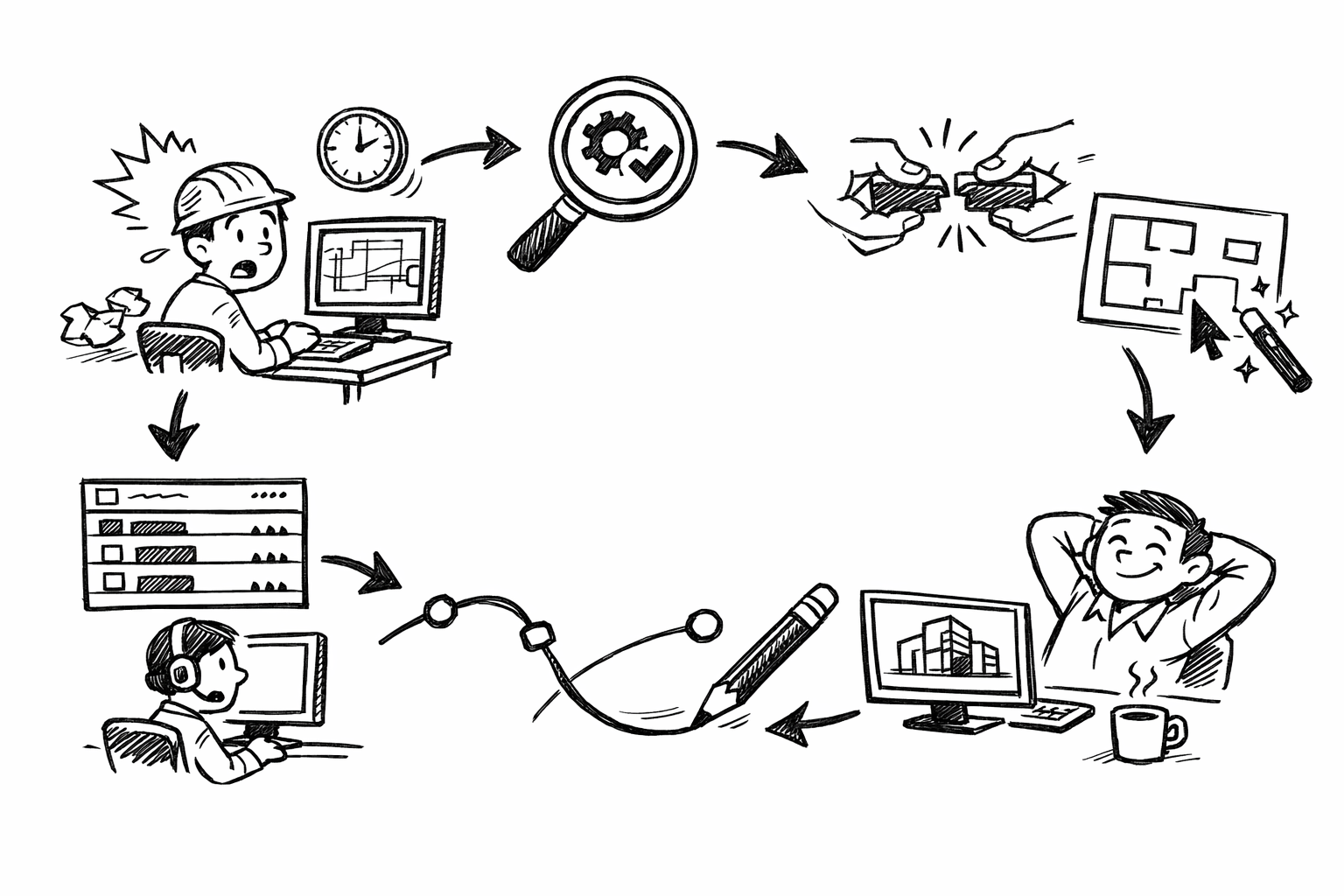


This is a “shop-floor” productivity audit for AutoCAD LT: features most teams already have, but underuse because they’re subtle, context-driven, or buried in right-click and command-line flows. The goal is not new software—it’s reclaiming time from small interruptions: palette hunting, mis-selections, visibility debugging, and repetitive property setting.
Below are five features. Each is explained in terms of what it is, where it hides, a repeatable micro-workflow you can apply daily, and the common pitfalls to standardize around so it works the same way for everyone.
Quick Properties: edit the design where you’re thinking (without opening palettes)
Why it matters
Quick Properties is about eliminating context switches. Instead of bouncing between drawing, Properties palette, and Layer Manager, you make small corrections exactly where your attention already is—on the geometry. Done consistently, this encourages edit-in-place detailing and keeps cleanup passes fast, especially in inherited or consultant DWGs where hundreds of minor inconsistencies accumulate.
Where it’s hidden
Quick Properties appears only when enabled, and only after selecting an object. Many users miss it because it looks like a transient tooltip rather than a serious editing surface. If it’s disabled, nothing reminds you it exists; if it’s enabled but too “busy,” people visually tune it out.
How to use it (repeatable workflow)
Use Quick Properties as a rapid “touch-and-go” editor for the few fields you change constantly:
- Select an object (line, polyline, hatch, text, dimension).
- Edit key fields directly inside the Quick Properties panel (commonly: layer, color, linetype, lineweight; for text: height/rotation/width factor where available).
- Press ESC to clear selection.
- Repeat: select → tweak → ESC → next.
The power move is to treat it like a metronome during consistency passes: a steady, repeatable rhythm rather than occasional “deep dives” into palettes.
Micro-examples
Cleaning a consultant DWG without palette hunting
- You notice door swing arcs and a few centerlines landed on an incorrect layer.
- Select one offending object.
- In Quick Properties, change Layer to your standard (e.g., A-ANNO-CNTR or similar).
- ESC, click the next, repeat. No Layer Properties Manager required.
Fixing annotation drift fast
- Select multiple text objects that look “close but not identical.”
- In Quick Properties, set the text height and rotation to your standard (if those properties are exposed for the object type and selection mode).
- Immediately see the effect without opening a palette that covers the drawing.
Productivity calibration and pitfalls
- Calibrate it to the “top 8.” If Quick Properties shows too many fields, it stops being quick. Standardize a small list that matches your production reality: layer, color, linetype, lineweight, linetype scale (if relevant), text height, dim style (where available), and hatch scale/angle (where relevant).
- Multi-select behavior can be deceptive. When you select multiple objects, some values show as “Varies.” That’s useful feedback, but it’s also a sign you may need the full Properties palette for thorough auditing. A practical standard is: use Quick Properties for single-object corrections and small batches; when you see “Varies” and the fix is nuanced, escalate to Properties.
- Don’t fight the tool. Quick Properties isn’t meant to expose every possible property. Treat it as a fast editor for common fields, not a replacement for deep object inspection.
Selection Cycling: reliably grab the right object in dense drawings
Why it matters
Mis-selection is a hidden tax in drafting: you click, edit, realize you changed the wrong polyline or hatch, undo, zoom in, try again. Dense drawings—xref edge stacks, overlapping polylines, nested blocks, hatch boundaries—amplify that cost. Selection Cycling reduces rework by letting you choose precisely which object you meant, even when multiple objects occupy the same screen location.
Where it’s hidden
Selection Cycling is controlled by a small overlapping-squares icon on the status bar. Many users never toggle it intentionally; they either live with it accidentally on and get annoyed by the extra clicks, or they keep it off and accept mis-selections as “normal.”
How to use it (repeatable workflow)
- Turn Selection Cycling ON in the status bar when you expect congestion (coordination plans, consultant overlays, heavy hatching).
- Hover and click where objects overlap.
- Choose the correct object from the cycling list (confirm layer/type before committing).
- Optionally combine with isolation: select the right object → isolate it → edit confidently → unisolate.
Think of Selection Cycling as a deliberate mode: enable it when selection accuracy matters more than speed per click, and disable it when drawings are clean and simple.
Micro-examples
Doorway detail with hatch + wall lines + blocks
You need to modify a hatch boundary polyline without exploding or deleting anything:
- Enable Selection Cycling.
- Click in the hatch-heavy area.
- From the selection list, choose the boundary polyline (not the hatch, not the wall line, not the block).
- Edit with grips or PEDIT as needed.
Choosing the correct polyline in an xref-heavy floor plan
- You’re editing local linework that sits directly over an xref wall edge.
- Click the overlap and explicitly choose the local object from the cycling list.
- Proceed with trim/extend without accidentally modifying the wrong geometry.
Productivity calibration and pitfalls
- Toggle it contextually. A practical standard: ON for coordination models and inherited drawings; OFF for your own well-layered clean linework. This reduces “extra click fatigue” when it isn’t needed.
- Learn to read the preview cues. The cycling list is more than a chooser—it’s an early warning system. If you expected a polyline on A-WALL but the list shows a line on DEFPOINTS, you just discovered a standards issue before you edited anything.
- Avoid selection ambiguity during batch operations. If you’re window-selecting large areas, Cycling may not help; it’s most valuable for localized overlaps where precision selection is critical.
Layer Walk & Layer Isolation: debug visibility like a detective
Why it matters
Visibility issues are time traps: “Why can’t I see it?”, “Why won’t it plot?”, “Why can’t I select it?” The faster you can narrow the scope, the faster you can solve it. Layer Walk and Layer Isolation are ideal for this because they let you investigate without permanently damaging the layer state. They support fast visibility debugging while preserving confidence that you can restore the drawing to its original state.
Where it’s hidden
Layer controls are visible, but these specific behaviors are often overlooked because they live behind commands, flyouts, or right-click options. Many LT users know how to turn layers on/off or freeze/thaw, but they don’t use Layer Walk as a temporary “scan mode,” and they don’t isolate as a disciplined focus tool.
How to use it (repeatable workflow)
Adopt a lightweight, repeatable “diagnose then restore” routine:
- Run Layer Walk to preview the drawing one layer at a time (or in logical groups) without committing long-term layer state changes.
- When you locate the suspect system, apply Layer Isolate to focus on only the relevant layers or objects.
- Verify object properties (layer, color, plot flag, linetype, etc.) and make the fix.
- Restore the model with Layer Unisolate and confirm you didn’t accidentally leave layers frozen, locked, or off.
This pattern is valuable because it prevents the classic problem: someone “temporarily” turns off layers, forgets what changed, and later the team inherits a drawing with unexplained missing content.
Micro-examples
Plot issue triage
A line appears on screen but doesn’t plot (or seems too faint):
- Use Layer Walk to identify which layer the object lives on when it appears/disappears in the scan.
- Isolate that layer and inspect whether it is marked as non-plot, or if its color/screening is effectively invisible in your plot style workflow.
- Fix the layer assignment or plotting behavior, then unisolate to restore normal visibility.
Legacy DWG cleanup: construction layer contamination
- Layer Walk reveals unexpected content on layers like DEFPOINTS or old “TEMP/CONSTR” layers.
- Isolate those layers to assess what is real production geometry vs. drafting leftovers.
- Move legitimate objects to standard layers; purge or delete true leftovers after verification; unisolate to confirm nothing essential disappeared.
Productivity calibration and pitfalls
- Prefer isolate over mass toggling. Turning many layers off/on is error-prone. Isolation gives you a controlled focus window and a single action to restore.
- Standardize a “debug protocol.” A simple office checklist helps: isolate → verify properties → fix → restore. This reduces “mystery layer states” in shared files.
- Restore deliberately. The biggest pitfall is leaving the drawing in a modified state—especially when you’re interrupted mid-task. Make “unisolate before save” a habit in production drawings.
Match Properties (MATCHPROP): enforce standards instantly, not eventually
Why it matters
Most standards drift occurs one object at a time: a line drawn on the wrong layer, text pasted with the wrong style, a dimension that looks slightly off. MATCHPROP compresses multiple manual steps into one gesture, turning standards enforcement into an immediate act instead of a deferred cleanup. Used correctly, it becomes a fast path to visual consistency across sheets.
Where it’s hidden
Many users know the icon, but underuse its depth—especially the reality of what it matches, what it doesn’t, and the unintended side effects when applied across mixed object types. Teams often treat it as “paintbrush for layers,” missing its role as a full property transfer tool.
How to use it (repeatable workflow)
- Identify a “gold standard” object that already conforms to your office plotting and layering conventions.
- Run MATCHPROP.
- Select the donor object first, then select target objects to receive the same properties.
- Work in phases so you don’t accidentally spread wrong settings:
- Geometry pass (lines/polylines/arcs)
- Annotation pass (text/mleaders where applicable)
- Dimension pass
- Hatch pass
This phased workflow matters because it reduces cognitive load: you’re not trying to standardize everything at once; you’re performing a repeatable sweep that can be verified quickly.
Micro-examples
Standardizing section cut lines
- Find one correct section cut line with proper linetype, linetype scale, lineweight, and layer.
- Run MATCHPROP and apply to all section lines on the sheet.
- Result: linework reads consistently and prints as expected without manually managing multiple settings.
Making imported details conform
- Select a standard office note text that uses the correct text style and height.
- Match properties onto pasted/imported notes that look “almost right.”
- Follow with a quick scan for exceptions (special symbols, stacked fractions, or discipline-specific formatting that should not be homogenized).
Productivity calibration and pitfalls
- Keep “donor objects” ready. Build a small scratch area in the drawing (or a template zone) that contains standard donors: a typical wall line, centerline, section line, note text, dimension, hatch sample. This turns MATCHPROP into a predictable tool instead of a scavenger hunt.
- Beware unintended matches. Linetype scale and other subtle properties can change the appearance of imported geometry dramatically. After a batch pass, do a quick audit: zoom to a few representative areas and confirm that dashed patterns and weights look correct at your plot scale.
- Mixed object types need caution. If you match from a polyline to a line (or from one annotation type to another), confirm that the properties you care about actually transfer and that you didn’t propagate something irrelevant.
Dynamic Input + Command Line power moves: speed through precise edits without dialog fatigue
Why it matters
AutoCAD LT productivity often bottlenecks at “too many clicks.” Every time you open a dialog, move to a palette, or stop to “hunt” for an option, you break drafting flow. Dynamic Input and command-line option awareness shift common edits into fast keyboard-driven micro-operations. The result is less friction in precision tasks: offsets, moves, trims, fillets, and iterative adjustments.
Where it’s hidden
Dynamic Input is a status bar toggle, and its benefits are only obvious if you pay attention to the prompts that appear near the cursor and in the command line. Many powerful command options are “hidden” in the sense that they only appear while a command is active. If you don’t glance at the prompt line, you miss them and end up restarting commands repeatedly.
How to use it (repeatable workflow)
- Turn Dynamic Input ON when you want cursor-near prompts and numeric entry close to your crosshair.
- Enter distances and angles directly at the cursor rather than opening calculators or properties fields mid-command.
- While a command is running, use command-line option letters to switch modes without restarting (the prompt line tells you what’s available).
- Chain operations using efficient repetition:
- Press Enter/Space to repeat the last command, reducing mouse travel.
- Stay in a sequence (e.g., trim/extend/fillet) without “resetting your hands” every time.
The key behavioral standard is option awareness: train yourself to glance at prompts as part of the workflow, not as an afterthought.
Micro-examples
Precision nudge without properties panels
- You need to move a set of fixtures exactly 25 mm right and 10 mm up.
- Start MOVE, select objects, pick a base point.
- With Dynamic Input active, enter the displacement precisely (for example as relative coordinates, depending on your drafting convention).
- Finish with Enter and continue—no dialog boxes, no guessing.
Fast cleanup sequence: fillet/trim/extend without reselecting settings
- Use FILLET with the needed radius, then immediately repeat it with Enter for adjoining corners.
- Switch to TRIM; pay attention to prompts so you don’t re-enter the same selections unnecessarily.
- Use EXTEND next, again leveraging prompt options rather than restarting to correct mode mistakes.
Productivity calibration and pitfalls
- Use Dynamic Input selectively. ON is excellent for geometry and layout operations where numeric entry is frequent. OFF can be better for tight annotation work where cursor prompts may obscure small text or leaders. Make this a conscious toggle—like snapping modes—rather than a permanent preference.
- Don’t ignore prompts. Most speed gains come from noticing the option you need at the moment you need it: switching a command’s mode midstream, changing a selection method, or confirming constraints before committing.
- Standardize keystroke habits. Teams that agree on a few consistent behaviors (Enter/Space for repeat, using option letters, committing to keyboard numeric entry) become predictably faster, and training new staff becomes simpler.
Conclusion
The leverage is simple: each of these features saves seconds, but repeated hundreds of times per drawing set, those seconds become hours. The gains are not hypothetical; they come from cutting micro-friction—mis-selections, palette detours, visibility confusion, and repetitive property setting—where LT users spend much of their day.
A practical adoption plan is to introduce one feature per week: enable it, apply it in a repeatable micro-workflow, and document your preferred toggles and defaults. Then bake the behaviors into a lightweight office checklist so they persist beyond individual preference—turning small workflow refinements into a durable, measurable productivity standard.
Also in Design News