
Your Cart is Empty


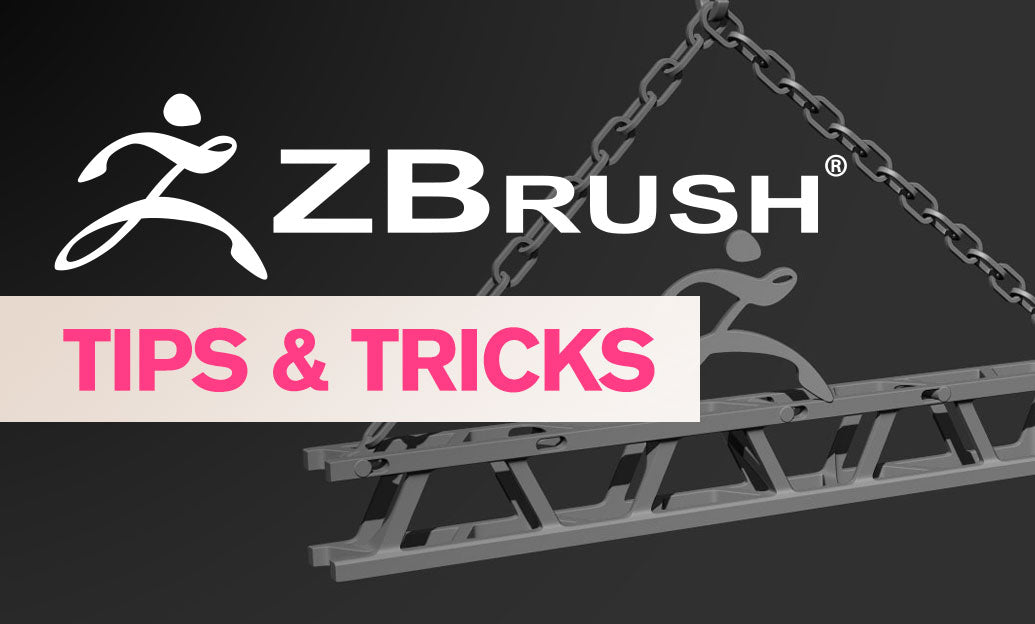

Curve Brushes enable fast, accurate placement of Insert Mesh (IMM) parts—ideal for cables, stitches, pipes, and trims. For licenses, upgrades, and accessories, check out NOVEDGE.
Choose the right starting point:
- Use default IMM curve brushes (e.g., CurveTube, CurveMultiMesh) to prototype quickly.
- For production, build a custom IMM with Tri Parts so ends and mids behave cleanly on curves: Brush > Create InsertMesh, then Brush > Modifiers > Tri Parts + Weld Points.
- Keep scale predictable: set Brush > Depth > Imbed to make inserts sit flush without hovering or sinking.
- Enable Brush > Modifiers > Align to Normal to orient the insert consistently to the surface.
Place curves with control:
- Stroke > Curve > Snap ON so the curve adheres to surface curvature.
- Tune Curve Snap Distance: lower values hug details; higher values smooth over micro bumps.
- Set Curve Step for spacing/tiling precision (smaller = denser placement for repeating IMM).
- Use AsLine for perfectly straight runs, then toggle off to resume organic paths.
- Lock Start/Lock End to keep anchors planted while you edit mid-spans.
- Brush > Depth > Front/Back Adjust helps when curves seem to clip or float.
Drive precision from topology:
- Define clean PolyGroups where you need guided paths (ZModeler/Group by Normals/Group Visible).
- Stroke > Curve Functions > Frame Mesh to automatically create curves along borders, creased edges, or PolyGroup loops.
- Toggle Frame Border/Frame PolyGroups to target exactly the edge rings you want.
Edit curves non-destructively:
- Click-drag the curve to reposition segments; drag endpoints to slide the start/finish precisely.
- Enable Stroke > Curve > Bend, Elastic, or Liquid to control how the insert deforms while you tweak the path.
- Projection Strength helps the insert conform to uneven surfaces without tearing.
- To finalize, simply start a new stroke elsewhere or split the inserted mesh to its own SubTool for further edits.
Shape variation along the path:
- Brush > Modifiers > Curve Modifiers: enable Size to taper cables or stitches from start to end.
- Use Twist or Roll graphs for braided, spiral, or repeated-tilt effects on IMM chains.
- For repeating panels/rivets, lower Curve Step and enable Weld Points if continuity is required.
Troubleshooting quick hits:
- Jagged bends: decrease Curve Step or simplify the path; avoid extreme radii relative to insert thickness.
- Gaps between segments: enable Weld Points or slightly increase Curve Step for overlap.
- Stretching on corners: use Tri Parts with a neutral, uniform midsection and check Stretch settings.
- Surface poke-through: nudge Imbed and adjust Projection Strength downward.
Integrate this workflow into your kitbashing library and save time on every hard-surface or character pass. For ZBrush deals, hardware, and pro add-ons, visit NOVEDGE.



