
Your Cart is Empty


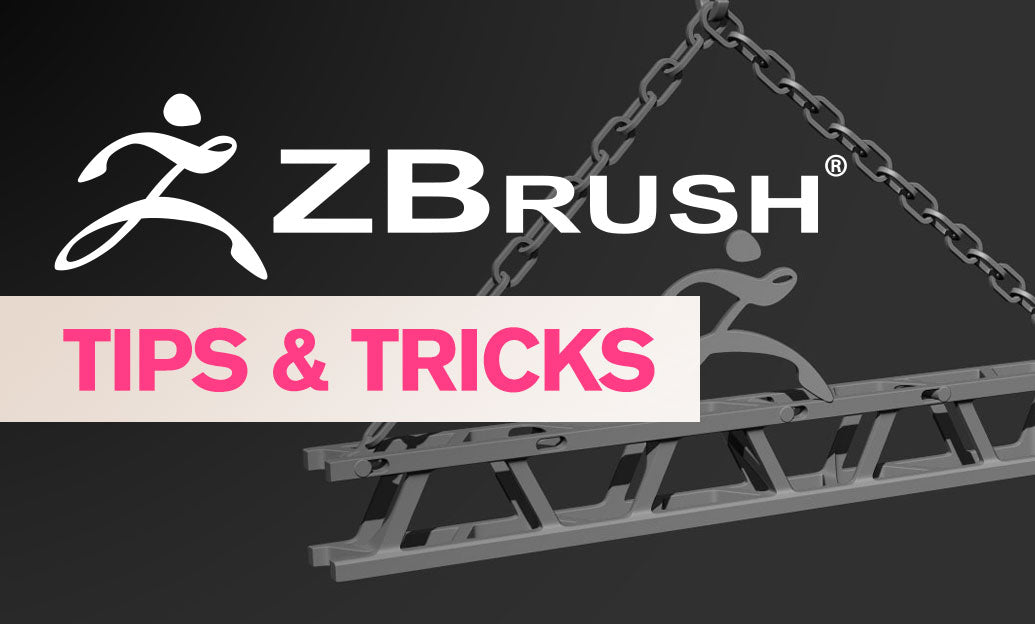

ArrayMesh lets you build procedural repetitions—radial patterns, linear runs, and layered grids—non-destructively and in real time. Here’s how to get reliable, editable results fast.
-
Prepare the pivot:
- Position the source SubTool at the desired origin for the repetition. For radial arrays, the pivot must sit at the rotation center.
- Use Transform > S.Pivot to set a local pivot to your selection, or Center/Align with Gizmo 3D (Gear icon > Reset/Center).
- Keep your source low-poly and clean; instances mirror its edits live.
-
Activate ArrayMesh:
- Go to Tool > ArrayMesh and toggle Activate.
- Set Repeat to define how many instances you need. Keep it modest while blocking to maintain viewport speed.
-
Linear arrays (strips and runs):
- Adjust Offset on the axis you need (e.g., Offset X).
- Dial Repeat until spacing and count look right. Use the source’s bounding size as a guide for even spacing.
- Combine slight Scale with Offset for tapered runs.
-
Radial arrays (rings and spokes):
- With the pivot centered, set Rotate on the axis facing camera (often Rotate Z).
- Tip: A clean circle is Rotate = 360 ÷ Repeat. Example: 12 repeats → Rotate Z = 30.
- Mix small Offset with Rotate to form spirals or helical patterns.
-
Grids and layered patterns:
- Use multiple stages. Stage 1: Offset X with its own Repeat. Stage 2: Offset Y with its own Repeat.
- Stacking stages multiplies patterns (e.g., 6 columns × 4 rows). Add a third stage for vertical layers (Offset Z).
-
Live control and best practices:
- Toggle Show TransPose in ArrayMesh to manipulate the array’s pivot with Gizmo 3D while previewing updates.
- Use Lock Pos to prevent accidental pivot shifts once dialed in.
- Edit only the source SubTool; all instances update instantly—great for iterating ornament sets, vents, bolts, scales, or tread patterns.
- Keep ArrayMesh active during look-dev; convert to real geometry only when you must export, boolean, or sculpt per-instance.
-
Converting and exporting:
- When final, use Tool > ArrayMesh > Make Mesh to bake the instances into a new SubTool.
- For heavy arrays, run ZPlugin > Decimation Master after baking to keep files nimble.
- Before sending to other apps, validate scale and normals, then export via OBJ/FBX.
-
Troubleshooting quick hits:
- Uneven spacing? Re-check object size and pivot; reset with Transform > S.Pivot or the Gizmo’s Center option.
- Gaps or overlaps after conversion? Nudge Offset or Scale slightly before baking; tiny adjustments compound across repeats.
- Viewport sluggishness? Lower Repeat while iterating or temporarily disable Activate.
Pro tip: Combine ArrayMesh with Live Boolean for repeat cutouts, then Make Mesh for clean, production-ready geometry. If you need instancing tied to surface polygons instead, swap to NanoMesh; use ArrayMesh when you’re repeating entire SubTools procedurally.
For reliable licensing, upgrades, and expert advice on Maxon ZBrush, check out NOVEDGE. Stay tuned to NOVEDGE for more production-proven workflow tips.



