
Your Cart is Empty


Streamline Your Workflow: Export Layouts to DWG with VisualARQ 3's New Feature

Why Exporting Layouts Directly to DWG Matters

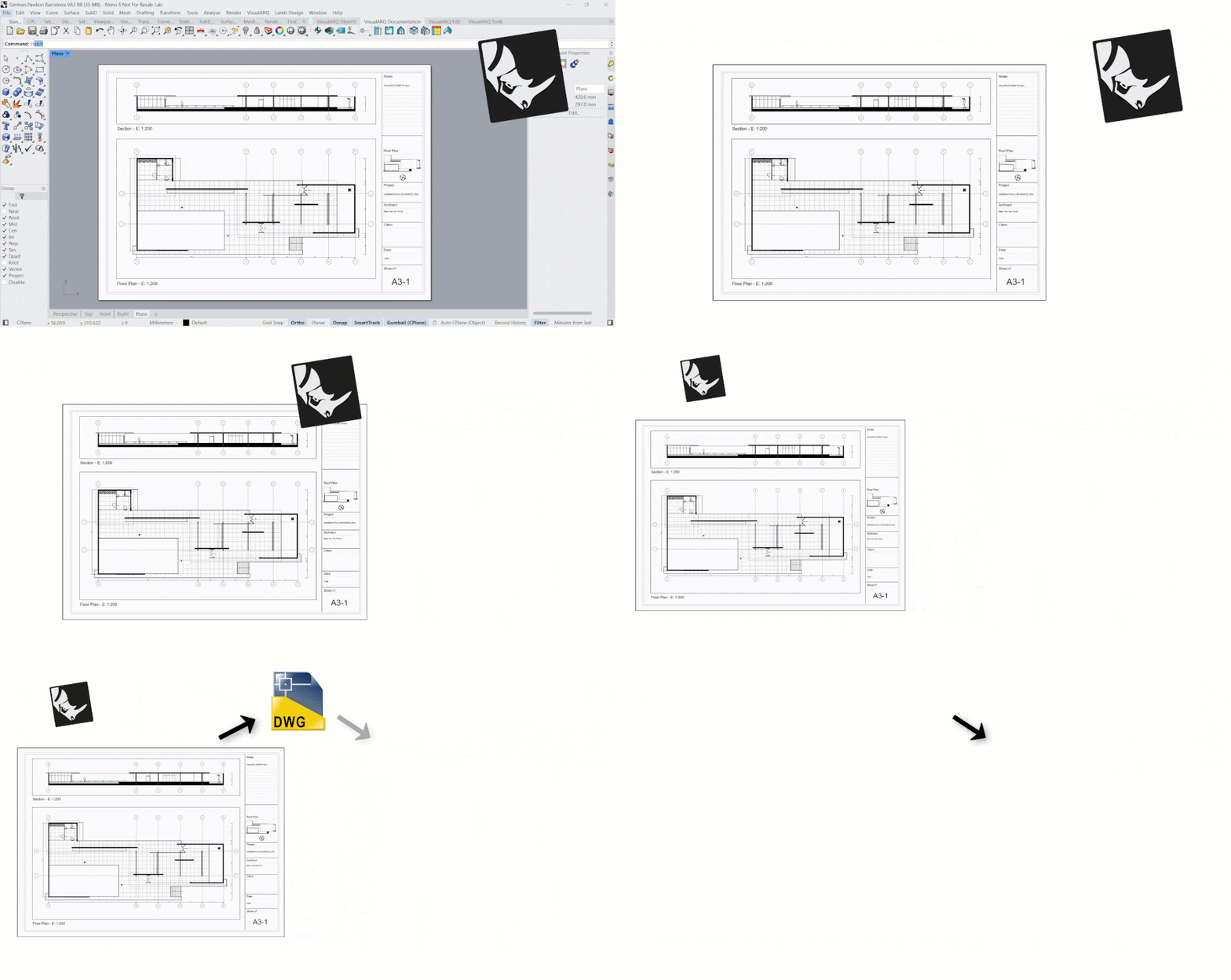
Rhino users working in architecture, interiors, product design or civil engineering know the challenge well: you create an impeccably detailed project inside Rhino, set up page layouts in VisualARQ 3, and then collaborators request DWG files. Traditionally, that meant “flattening” geometry, manually redrawing views, or relying on third-party translators that rarely preserved layers, hatches, scales, and annotation styles. Every extra step introduced risk and consumed precious billable time. The new vaExportToDWG feature changes that equation entirely. With one command, all your layouts—plans, elevations, sections, detail bubbles, title blocks, even 3D perspectives—move to DWG as 1:1 vector geometry, ready for any DWG-based platform. The result is a streamlined workflow that eliminates duplication, protects drawing fidelity, and accelerates coordination with consultants working in AutoCAD, DraftSight, BricsCAD, or any other software capable of opening DWG files.
How Layouts Work in VisualARQ 3
VisualARQ builds on Rhino’s native Layout space, adding architecture-specific tools such as intelligent walls, doors, windows, spatial zones, and automated 2D documentation. Layouts host Detail objects, each providing a live viewport into your 3D model. You control scale, layer visibility, display mode, and clipping planes independently per Detail. This approach encourages you to think of drawings as dynamic views instead of static linework. When the design evolves, every Detail updates, and your sheet set stays coordinated. What the new exporter does is take those live views and convert them into permanent vector drawings—without destroying the parametric connection in your working file. In practical terms, you can iterate freely in Rhino and VisualARQ, then publish a clean DWG package whenever stakeholders request one.
Step-by-Step: Using the vaExportToDWG Command
The workflow could not be simpler:
1. Inside each Detail you intend to export as editable linework, switch the display mode to Hidden. This mode generates crisp silhouette edges and omits hidden lines, ideal for 2D documentation.
2. Run the vaExportToDWG command. A dialog lists all the Layouts in the file. Check the boxes for the sheets you wish to export; multi-layout export is fully supported.
3. Select an output folder and choose a file naming convention. VisualARQ generates one DWG per sheet, embedding its geometry in model space at 1:1 scale. If you prefer a single consolidated DWG containing all sheets in separate blocks or layer groups, that is an option as well.
4. Verify the result. Open the DWG in AutoCAD, DraftSight, or BricsCAD; you’ll find Layers, Hatch patterns, annotation styles, and viewport scales preserved exactly as they were configured in Rhino.
The Role of Hidden Display Mode
Why insist on Hidden? Because edge calculation is everything. In wireframe mode, VisualARQ would export every surface line, including geometry that should remain invisible in a construction document. Hidden mode performs a real-time occlusion test and extracts only visible silhouette curves. The result is lighter, cleaner DWG files that print better and are easier for collaborators to edit. You can still fine-tune visibility: show construction lines in grey, render furniture on a screened layer, or hide reference models entirely. For sections and elevations, combine Hidden with VisualARQ’s Section Attributes to generate poche fills automatically. All hatches transfer to DWG intact.
Collaboration Without Compromise
Consultants live in different ecosystems—structural engineers might use AutoCAD, MEP teams often rely on Revit’s DWG export, fabricators favor Inventor or PTC Creo, and contractors demand PDF sets generated from DWG. By exporting layouts directly, you deliver what each partner needs in a format they trust. Because geometry lands in model space at true size, dimension strings remain associative when opened in AutoCAD. Blocks defined in Rhino become AutoCAD blocks, preserving parametric data for schedules. Layers maintain their naming conventions and plot styles, so printing standards stay intact. Your team spends less time troubleshooting line weights and more time designing.
Best Practices for Layer, Hatch, and Annotation Control
Before running the exporter, audit your model and layout layers. Group elements logically—“A-WALL,” “A-DOOR,” “F-FURN”—and map hatches to ANSI or ISO standards recognized by downstream software. Set viewport overrides sparingly; the exporter honors them, but too many overrides can confuse consultants. For annotation, use Rhino’s Text Styles and Dimension Styles rather than raw text blocks; they translate to DWG as named styles, ensuring font consistency. If you rely on VisualARQ’s Level Manager, remember that each building level can be isolated via a filter in the exporter, allowing you to publish only the floors relevant to the recipient.
Leveraging DWG Output in Other Platforms
Once your layouts reach DWG, the possibilities expand dramatically:
AutoCAD—Open the file, attach Xrefs, and layer in consultant drawings. Because Detail geometry is vector-based, you can grip-edit polylines, swap blocks, or re-dimension without tracing.
DraftSight—Teams that prefer a streamlined drafting environment will appreciate the fidelity of exported hatches and line types. Because DraftSight uses AutoCAD’s .ctb/.stb plot style system, printed output remains identical.
BricsCAD—BricsCAD’s BIM module reads the exported blocks and layers as native entities, useful for downstream IFC classification or quantity takeoffs.
PTC MathCAD—Engineers can import DWG drawings for calculation documentation, layering stress diagrams over your exported sections.
In every scenario, your Rhino + VisualARQ model stays the authoritative source, while the DWG set becomes a communication bridge, not a liability.
Enhancing the Rhino Ecosystem
Rhino’s value sky-rockets when paired with purpose-built plug-ins. Consider the following additions to form a complete design, rendering, and documentation pipeline:
xNURBS—If you craft freeform roofs or custom furniture, xNURBS adds a powerful surface patching algorithm directly inside Rhino. Its output surfaces export flawlessly with vaExportToDWG, appearing as precise outline curves in your DWG sections.
V-Ray—When presentation images are needed alongside construction documents, V-Ray delivers photorealistic renders from the same Rhino scene. You can place renderings on dedicated layout pages; the exporter omits raster images by default to keep DWGs light, but you can embed low-res previews if desired.
Enscape—Ideal for real-time walkthroughs during client meetings. Because Enscape taps Rhino geometry directly, there is zero duplication of effort.
KeyShot—Industrial designers who need studio-quality product shots can push Rhino data to KeyShot’s rendering engine while keeping VisualARQ layouts intact.
All these plug-ins coexist peacefully; none interfere with the vaExportToDWG command, and all files remain Rhino-centric, ensuring a single source of truth.
Use Cases Across Disciplines
Architecture—An architecture firm designs a mixed-use tower. With VisualARQ’s Level Manager and parametric objects, they draft plans, reflected ceiling plans, and façade elevations. Consultants require DWG; the firm exports sheets directly, delivering editable linework that structural and MEP teams can annotate without redrawing.
Interiors—Interior designers populate spaces with custom cabinetry modeled via xNURBS. Layout views show millwork elevations and section cuts. The DWG export gives fabricators clean polylines they feed into CNC routers, removing guesswork and manual re-drafting.
Landscape & Civil—Site designers integrate Rhino terrain with Civil 3D surfaces. By exporting DWG from VisualARQ, they deliver plan-view grading diagrams, preserving curve precision for Civil 3D’s corridor modeling.
Industrial Fabrication—Sheet-metal contractors extract unfolded patterns from Rhino using specialized scripts. They then reference the exported DWG drawings to align notches, bends, and hole patterns within a broader assembly drawing package.
Return on Investment
Time saved is profit earned. Eliminating manual redraws can cut documentation hours by double-digit percentages. Because vaExportToDWG retains live connectivity in your Rhino file, you reduce errors stemming from outdated references. Clients perceive higher quality when drawings arrive clean and ready for immediate use. Even solo practitioners benefit: less administrative work means more time for design and business development.
Conclusion
The vaExportToDWG command transforms VisualARQ 3 from an advanced architectural modeler into a full-blown documentation powerhouse. By exporting page layouts as pristine DWG files, it bridges the gap between Rhino’s flexible design environment and the entrenched DWG standard used worldwide. When paired with complementary tools such as Rhino 3D, xNURBS, V-Ray, Enscape, KeyShot, AutoCAD, DraftSight, and BricsCAD, the workflow becomes both robust and future-proof. For detailed guidance on integrating these solutions, licensing options, or upgrades to the newest and most advanced design software technology, contact our sales team at NOVEDGE; we are ready to help you streamline your workflow and elevate your practice.
Also in Design News



