Your Cart is Empty


SpaceMouse as Computational Ergonomics: 6DoF Navigation for Faster, More Accurate Simulation Workflows
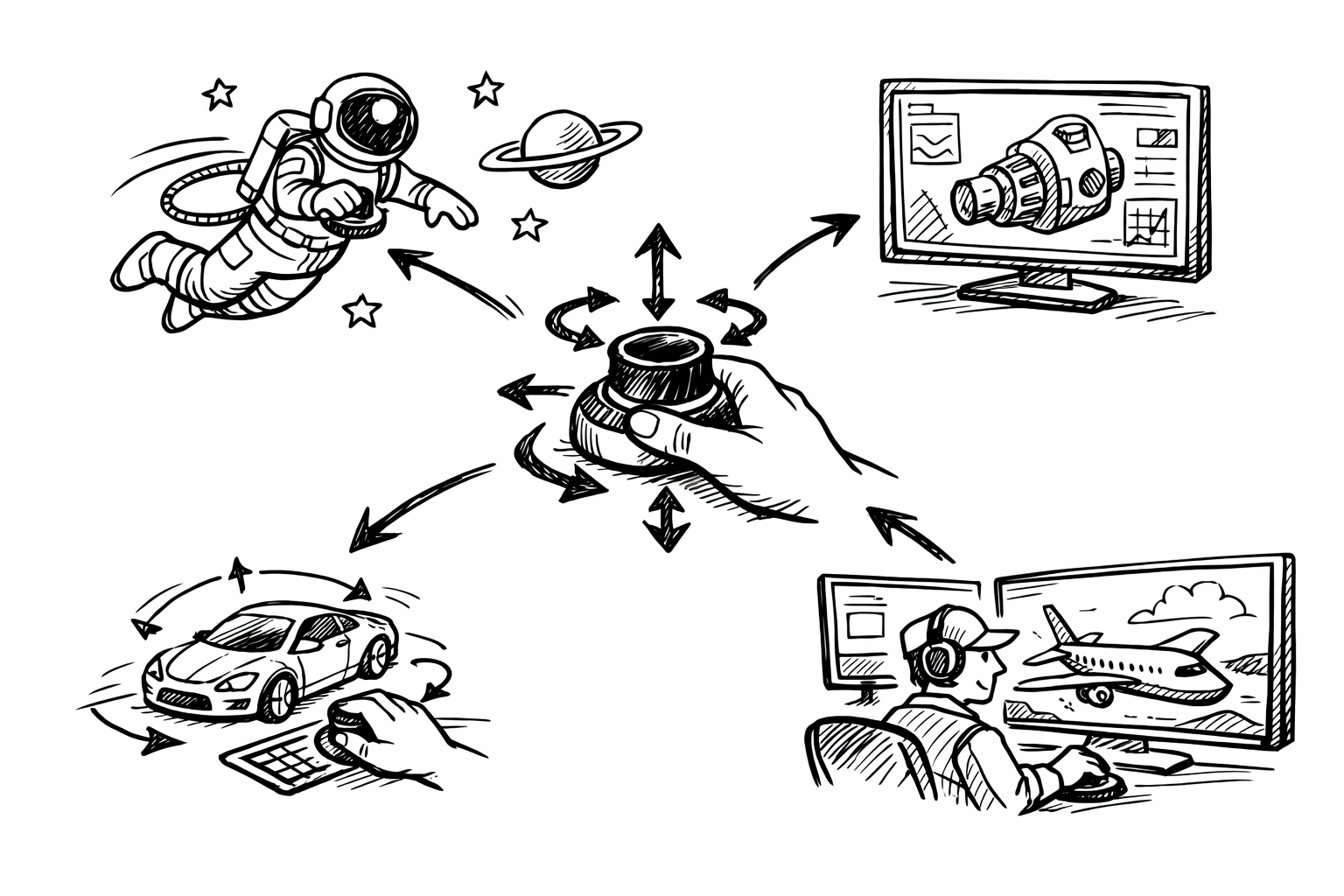


In simulation-heavy work, a SpaceMouse is better understood as a computational ergonomics tool than as a CAD accessory. When your day is dominated by pre-processing, solver setup, post-processing, and iterative design decisions, the bottleneck is rarely raw compute alone; it is the friction between thinking (engineering judgment) and doing (navigation, selection, and view control). This article focuses on how 6DoF input reduces that friction across the software stacks analysts actually use.
Faster 6DoF navigation accelerates pre-processing and model prep
The core advantage of a SpaceMouse is continuous 6 degrees of freedom (6DoF) camera control: pan, zoom, and rotate at the same time with one hand, while the other hand stays on the mouse and keyboard for selection, shortcuts, and parameter edits. In practical terms, it turns view control into a background action rather than a mode you must repeatedly enter and exit.
Simulation preparation is full of small camera-dependent checks. Each check is individually quick, but the accumulated latency of “orbit → stop → select → orbit again → undo mistaken pick → re-orient” becomes substantial over a week of models.
Where time is actually lost in simulation prep (and how 6DoF helps)
Inspecting complex assemblies for defeaturing and simplification often means hunting for the small details that make meshing brittle: tiny fillets, cosmetic ribs, embossed logos, thread features, or sliver faces created by boolean operations. This is not a single inspection pass; it’s iterative. You remove features, regenerate, then re-check the adjacent topology to confirm you did not introduce new problematic edges or accidental gaps. With 6DoF, you can continuously roll, yaw, and translate the view around suspect regions while keeping your cursor parked on the defeature/suppress tools and your keyboard ready for confirm/cancel. The result is less time spent “re-grabbing” the camera and more time actually evaluating whether the geometry is mesh-ready.
Verifying part contacts, interferences, and small gaps before meshing is another sink. Even in assemblies that are nominally “mated,” simulation requires you to confirm what the solver will interpret: are bodies truly touching, is there a microscopic gap, is there overlap, or are non-manifold edges present? A SpaceMouse allows you to slide the camera along contact interfaces at shallow angles, which is often the fastest way to detect tiny separations and unintended interpenetration. Instead of repeatedly switching between zoom/orbit/pan or fiddling with view cube snapping, you can “float” the view as though you are inspecting a physical part under a microscope.
Navigating to hard-to-reach internal regions is where 6DoF becomes disproportionately valuable. In CFD and thermal problems, internal passages (cooling channels, manifolds, turbine blade cores) demand frequent viewpoint changes to confirm surface integrity, boundary naming, and continuity. In additive designs, lattice cores and gyroid-like interiors can be visually dense even when technically manifold. With 6DoF translation, you can advance the camera through narrow openings, pivot in place, then back out without the typical cycle of clipping planes, awkward zoom, and repeated camera resets.
Practical workflow gains that compound
The most tangible benefit is that you can decouple “where my cursor is” from “where my camera is.” During preparation, this becomes a constant micro-optimization:
- Keep the cursor parked on selection, defeature, suppress, or repair tools while the viewpoint moves independently.
- Orbit-peek around fillets, ribs, thin walls, and datum features to confirm readiness for meshing without losing your place in the tool workflow.
- Move between faces, edges, and small surfaces with fewer camera resets, which reduces re-selection and accidental deselection.
In CFD, a common pre-processing rhythm is: verify flow path continuity, identify inlets/outlets, ensure boundary surfaces are watertight, and validate that the near-wall regions can be meshed with the intended inflation or prism layers. 6DoF navigation helps you quickly confirm that a boundary surface is truly a single coherent face set, that there are no inverted normals or hidden gaps, and that internal passage transitions are smooth enough for your turbulence and y+ targets.
In FEA, pre-processing frequently involves confirming that the load and constraint application faces are exactly what you intend, especially when the “obvious” face in the viewport is not the actual topological face (for example, when imprints, partitions, or splits have created multiple adjacent faces). Continuous reorientation makes it easier to check whether a fixture is applied to the correct region without losing context of the part’s load path.
Improved boundary-condition and contact setup accuracy under pressure
Navigation quality is not only about speed; it directly affects correctness. In simulation, correctness is often decided at the moment of selection: the face you click, the edge you constrain, the contact pair you define. When time pressure is high, the most common failures are not “missing physics” but simple interaction errors masked by complex geometry.
A SpaceMouse changes the selection and review loop by enabling precise, continuous view adjustments at the moment you are picking entities. Instead of switching tools or interrupting your hand position to get a better angle, you micro-adjust until the face is unoccluded, front-facing, and visually confirmed, then select. That reduces the chance that the solver will run overnight with a boundary condition quietly attached to the wrong surface.
Setup tasks most impacted
Several setup actions benefit immediately from improved scene control:
- Applying loads and fixtures to the correct faces/edges in dense geometry, especially in bracketry, castings, and multi-part assemblies with crowded interfaces.
- Defining contacts (bonded, frictional, sliding), symmetry planes, cyclic/periodic boundaries, and other relationships that depend on selecting the right pairings and orientations.
- Assigning material regions and named selections in multi-body parts where similar surfaces repeat and occlusion is common.
Contact definition is a particularly sensitive area. Analysts frequently need to select near-coincident surfaces that are visually close and easily confused. With 6DoF navigation, you can gently roll and translate the viewpoint to confirm which surface belongs to which body before committing the selection. This is even more valuable when using “select through” behavior, transparency modes, or when the model contains internal interfaces that are hard to visually parse.
Why the error profile changes
The advantage is not mystical; it is mechanical and cognitive:
- Micro-adjustments without tool switching overhead: you can continuously orient the view without leaving the selection tool, which reduces the “break” that causes misclicks and lost focus.
- Reduced occlusion mistakes: fewer accidental rear-face selections, fewer missed tiny surfaces, and fewer “I thought that was the face” moments.
- Better confidence checks: you can quickly validate a boundary condition from multiple angles before launching a long solve run.
The critical concept for simulation teams is that preventing one wrong constraint can save more time than any raw compute upgrade. A single incorrect fixture can invalidate stress magnitudes, shift mode shapes, or artificially stiffen a model. In CFD, one mistakenly assigned wall boundary on an intended opening can dramatically change pressure drop and mass flow balance. In either case, the run may converge and look “reasonable,” making the mistake expensive to detect. Small navigation improvements that reduce these errors have a compounding return because they prevent not just reruns, but also the downstream consequences: wrong design iterations, misdirected optimization efforts, and lost confidence in the simulation process.
Post-processing becomes a “scene exploration” task—SpaceMouse makes it fluid
Post-processing is not merely viewing plots; it is 3D interrogation and storytelling. You are forming hypotheses (“Is this hotspot real or mesh-induced?” “Is the recirculation driven by geometry or boundary conditions?”), then testing them by exploring the field from different orientations, probing values, and comparing against expected physics. The pace at which you can explore the scene influences how quickly you can reach a defensible engineering conclusion.
A SpaceMouse makes post-processing feel less like camera management and more like continuous exploration: you steer and hover around areas of interest while your other hand remains available for probe tools, legend adjustments, result selection, and data readouts.
What becomes faster and more insightful
Scrubbing and positioning around hotspots becomes more fluid. In FEA, stress concentrations near fillets, holes, and contact edges are highly view-dependent. You often need to rotate around a notch to distinguish a true geometric concentration from a contour artifact or an extrapolated boundary effect. With 6DoF control, you can keep the stress probe active and move around the hotspot continuously, watching values change as you move across faces and edges without repeatedly re-initiating orbit.
Interpreting vector and tensor fields benefits from continuous reorientation. Flow vectors, principal stress directions, and heat flux fields are not fully understood from a single view. Being able to rotate and translate the camera smoothly relative to principal directions helps you detect alignment, swirl, separation zones, and load paths. This is especially helpful when combined with glyphs, streamlines, or tensor plots that can visually clutter the scene; the ability to fluidly move through that clutter helps you see patterns instead of noise.
Following streamlines/pathlines through convoluted domains is one of the most natural use cases for 6DoF. In CFD, streamlines through manifolds, plenums, and branching passages often need to be followed from multiple perspectives. If camera control is clumsy, analysts default to a few static viewpoints and miss secondary flow structures hidden behind geometry. With a SpaceMouse, you can “fly” along the flow path, then pause and pivot around regions of separation or recirculation to understand the spatial cause.
Visualization and communication benefits
Simulation review meetings often involve live exploration: someone asks “What happens behind that rib?” or “Can you show the deformation from the other side?” Smooth navigation makes these reviews less awkward, especially when you need to keep your pointer over probes, plot controls, and result toggles while moving the view.
This also accelerates producing decision-ready viewpoints for screenshots and animations. Instead of repeatedly nudging the camera, re-fitting, and losing a good angle, you can stabilize the view more quickly, then capture consistent images across different result sets. When stakeholders compare configurations, consistency of viewpoint reduces confusion and focuses attention on the engineering differences rather than the camera differences.
Common post-processing actions that become more efficient with two-handed 6DoF navigation include:
- Slice/clip plane placement and adjustment while maintaining context of the 3D field around the cut.
- Iso-surface inspection by orbiting and translating around the surface to identify disconnected pockets, thresholds, and spatial relationships.
- Probe/measure on the fly while keeping a stable view, reducing the cycle of “move camera, lose probe, reselect probe.”
Reduced cognitive load and better ergonomics during long compute sessions
Simulation workflows are mentally demanding and physically repetitive. Even if solve times are long, analysts spend substantial time in focused bursts: preparing models, diagnosing issues, and exploring results. Much of that time involves camera manipulation. When camera control is awkward, your attention is repeatedly diverted from engineering reasoning to interaction mechanics.
Reframing productivity helps: the goal is not only to finish tasks faster, but to reduce the interface tax that erodes concentration during long sessions.
Ergonomic advantages in daily use
Two-handed interaction spreads repetitive motion. Instead of one hand doing nearly everything (mouse movement, wheel zoom, orbit gestures, click-drag pan, and selection), the SpaceMouse takes on continuous navigation while the mouse hand focuses on discrete actions: selecting, confirming, dragging handles, and interacting with dialogs.
Several ergonomic improvements tend to show up in practice:
- Reduced overuse of the mouse hand for all navigation actions, particularly repetitive wheel zoom and click-drag orbit.
- Less stop–start motion between wheel/keyboard/orbit modes, which can otherwise create a persistent “micro-frustration” over a day.
- More comfortable fine control during extended investigations in dense post-processing, where frequent small camera adjustments are required.
While physical comfort is important, the more subtle benefit is attentional stability. Camera adjustments become continuous and low-effort, which helps maintain flow state. The analyst spends less mental energy on “How do I get the view to cooperate?” and more on “Is this mesh quality sufficient?” “Does the convergence behavior match expected physics?” “Are boundary conditions consistent with the real test configuration?”
Cognitive benefits for advanced workflows
For experienced users, the cognitive win can be tied to human factors: continuous analog control reduces context switching compared to discrete input patterns. When you are diagnosing a convergence anomaly or investigating a contact instability, you need to maintain a mental model of the geometry, the physics, and the solver’s numerical behavior. Every forced interruption to reorient the camera is a small context break. Over time, those breaks accumulate into slower reasoning and more fatigue, even if your absolute navigation time does not seem large in isolation.
Analog 6DoF navigation also supports a more exploratory mindset. You are more likely to “quickly check” an alternate perspective or validate an assumption when the cost is low. That creates a subtle quality improvement: more frequent micro-validations reduce the risk of building a narrative around a misleading viewpoint.
Custom buttons, macros, and app profiles unify multi-tool simulation stacks
Real workflows rarely live inside a single application. A typical simulation pipeline spans CAD, meshing, solver setup, post-processing, and sometimes separate visualization engines or scripting environments. Each tool has its own camera controls, shortcuts, and selection quirks. The friction often comes from inconsistency: your hands must relearn small behaviors as you move from one application to another.
This is where programmable controls matter. A SpaceMouse with customizable buttons and software profiles can become a unifying layer across the stack, reducing reorientation time between tools and improving consistency in review and documentation.
How programmable controls pay off
Mapping high-frequency actions to device buttons reduces reliance on scattered menus and toolbars. The highest return actions are usually those that interrupt thought when buried in UI. Common candidates include:
- Fit view / zoom to selection
- Orthographic/perspective toggle for measurement clarity versus spatial understanding
- Section view and clipping controls for internal inspection
- Hide/isolate and show all, especially in assemblies and multi-body parts
- Measure and probe activation
- Screenshot or copy viewport for rapid documentation
Per-application profiles are essential because each tool names commands differently and sometimes uses different camera conventions. The key is to make the user’s experience consistent even if the underlying software is not. With good profiles, the same physical button triggers the logically same action in CAD, meshing, and post-processing.
Macros can go further by bundling repeatable steps into a single action. In post-processing, for example, a macro might set a standard view orientation, enable a clipping plane, and activate a probe or contour plot mode. The value is not just speed; it standardizes behavior. Analysts are more likely to follow good review habits when those habits are encoded into low-friction controls.
Team and process benefits
In team environments, consistent navigation and viewpoint standards improve review quality. When everyone can quickly generate comparable views (same orientation, same clipping conventions, similar zoom framing), discussions focus on physics and design decisions rather than “Wait, what am I looking at?” This consistency also improves documentation: reports become easier to compare across iterations because the visual framing is stable.
Programmable controls can reduce training friction for junior analysts by codifying “known-good” actions. Instead of teaching a long list of shortcuts and UI locations, you provide a small set of consistent device mappings that guide users toward correct behaviors: verify contacts, isolate regions, cut sections, probe values, and capture views with minimal overhead.
Implementation notes for a fast start
To avoid over-customization that never stabilizes, start small and evolve based on measured repetition:
- Begin with 5–8 essential commands mapped to buttons you can reach naturally; use the rest later.
- After 1–2 weeks, review your “most repeated actions” (especially view resets, section toggles, isolate/show, and probe/measure) and refine mappings accordingly.
- Keep mappings consistent across apps wherever possible to build muscle memory; only diverge when a tool truly requires different behavior.
The aim is to create a single, stable interaction vocabulary that follows you across the stack: the same physical motions and buttons yield the same conceptual outcomes, regardless of which application is open.
Once stabilized, these controls become part of your process rather than a personal preference. Over time, they reduce variance in how models are inspected and how results are presented, which is particularly valuable when multiple analysts contribute to the same program.
Conclusion
Treated as a computational ergonomics tool, a SpaceMouse can deliver five outcomes that matter in simulation work: faster navigation, fewer setup mistakes, richer post-processing insight, less fatigue during long sessions, and tighter cross-tool consistency through profiles and macros.
A practical way to validate the value is straightforward: pick one active project, measure how much time you spend on navigation and selection corrections, trial SpaceMouse mappings for that project’s highest-frequency tasks, then reassess after a week of real runs. The result you are looking for is not just saved minutes, but fewer rework cycles and a smoother path from engineering judgment to execution.
Also in Design News