Your Cart is Empty

Rhino 3D Tip: Save and Restore Consistent Camera Views with Rhino NamedView
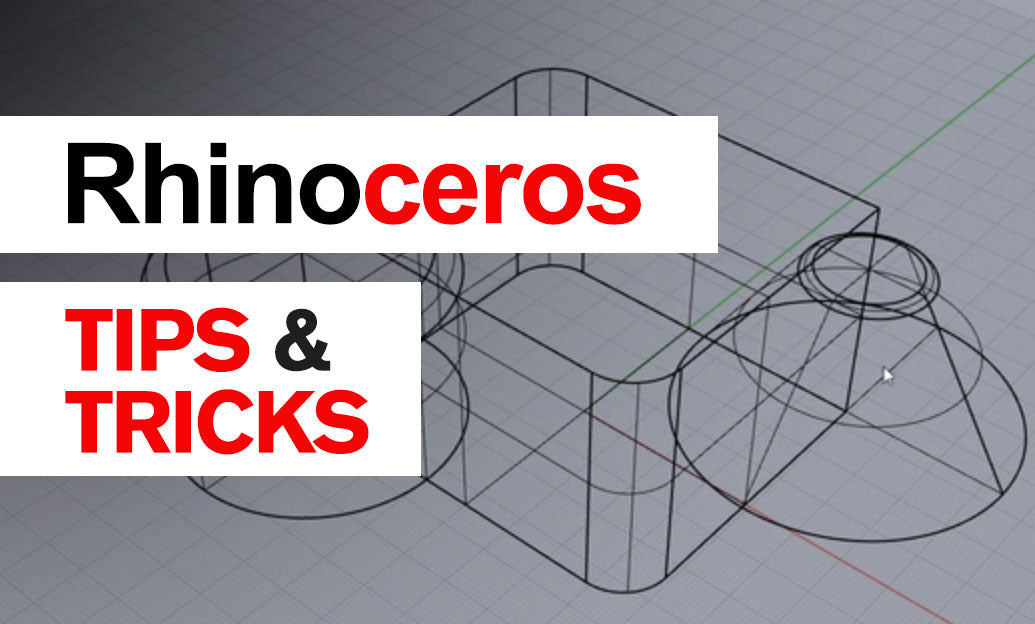

Save useful camera positions with Rhino’s NamedView command instead of rebuilding them every time you orbit away. Named views make detailed modeling, design reviews, and presentation updates more consistent, especially when a project requires repeated inspection from the same angle.
Build a small library of working views:
-
Frame the model first. Activate the viewport you want to save. Choose an appropriate projection, then pan, zoom, and rotate until the geometry reads clearly. Use
Zoomwith theSelectedoption to focus on a particular component before refining the composition. -
Save the position. Run
NamedViewto open the Named Views panel. Save the current viewport view and assign a descriptive name. Rhino stores the view definition, including camera and target information, so you can return without manually navigating. - Restore when needed. Activate the destination viewport, then double-click the saved view in the panel. The saved view is restored in that viewport, allowing you to move quickly between an overall composition and close inspection angles.
Name views for their purpose, not just their direction. Names such as 01_Overall_Perspective, 02_Handle_Clearance, and 03_Rear_Connection communicate what each view is intended to show. A numbered prefix also makes review sequences easier to follow and keeps related views organized.
For example, when developing a product enclosure, save one overall perspective, one close-up of the seam, and one underside view showing fastener access. After changing the enclosure geometry, restore these views to inspect the same areas again. This reduces navigation time and makes subtle changes easier to evaluate.
Keep these distinctions in mind:
- A named view is not a model snapshot. Restoring it does not undo geometry edits or return objects to earlier positions. It shows the current model from the saved viewpoint.
- Visibility needs separate management. Do not rely on a named view to recreate an entire presentation setup. Use layer states to manage layer visibility and related layer settings, and check object visibility before capturing an image.
- Framing depends on viewport proportions. Restoring the same camera into a wider or taller viewport can change the visible composition. For comparison images, keep the viewport proportions and capture dimensions consistent.
- Save the Rhino document. Named views are stored with the model file, making them available when you reopen the project or share that file with a colleague.
Make review views part of your routine. Before a design meeting, create three to five intentional viewpoints rather than a long collection of nearly identical angles. Check each view against the current geometry, remove obsolete entries, and use clear names that another team member can understand immediately.
When producing progress images, restore a saved view and use ViewCaptureToFile. Keep the display mode, lighting, visibility, and output dimensions consistent between captures so the comparison emphasizes design changes rather than presentation differences.
Explore Rhino resources through NOVEDGE, and browse the NOVEDGE blog for additional workflow ideas. Start today by saving your most frequently reconstructed view: one deliberate setup can replace dozens of repeated navigation adjustments over a project’s lifetime.
You can find all the Rhino products on the NOVEDGE web site at this page.
Also in Design News