Your Cart is Empty


Rhino 3D Tip: Predictable Non-Uniform Scaling with Scale1D and ScaleNU
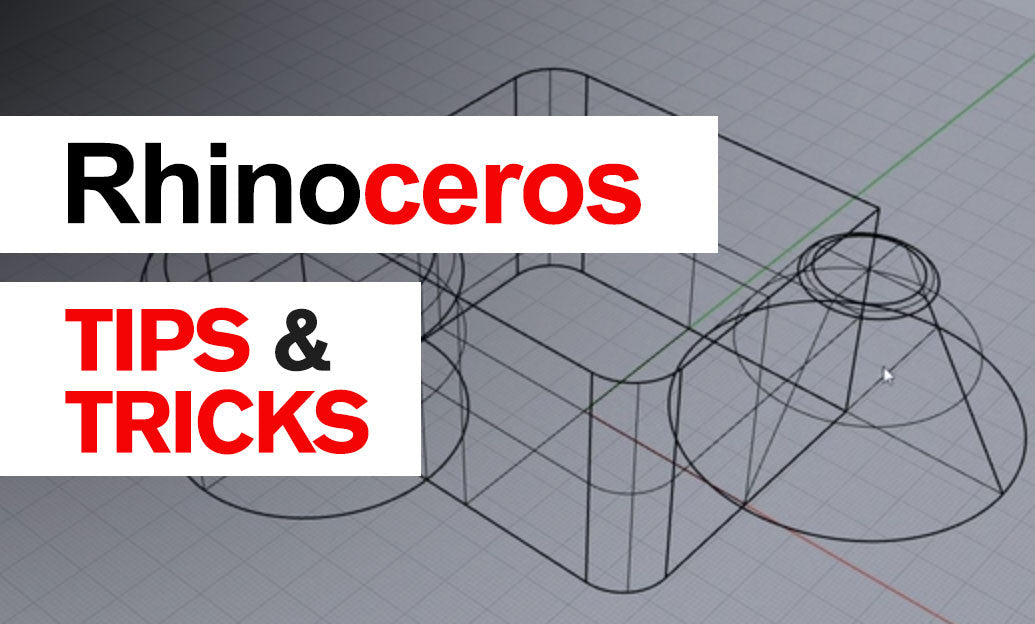

When proportions need to change only in specific directions, Scale1D and ScaleNU deliver precise, predictable non-uniform transforms without guesswork.
Understand the tools:
-
Scale1D: Scales along a single axis. Useful for stretching length or thickness while preserving cross-sections. -
ScaleNU: Scales independently in X, Y, and Z (non-uniform). Ideal for fit adjustments, packaging clearances, or design variants.
Reliable Scale1D workflow:
- Set a logical construction plane (CPlane) aligned to the target axis. Use Named CPlanes for repeatability.
- Run
Scale1D→ pick an Origin (use object center, a mid-snap, or a reference feature). - Pick the Scale Direction point to define the axis (e.g., along X of the CPlane or a custom vector).
- Choose between:
- Factor input (e.g., type 1.08 to grow by 8%).
- Reference distance: click current length, then target length for exact fit (great for tolerances).
- Use Copy=Yes to generate alternatives without overwriting the original.
Accurate ScaleNU workflow:
- Align the object with a meaningful CPlane so X/Y/Z directions match your design intent.
- Run
ScaleNU→ set Origin. Then specify X, Y, Z factors in sequence. - Mix methods: type a factor for one axis (e.g., 0.95), then use reference distances on others for exact sizes.
- To preserve proportions in two axes, enter the same factor for those two and vary the third.
Pro tips for clean, predictable results:
-
Gumball vs. Commands: Gumball axis-scale is quick;
Scale1D/ScaleNUare better for numeric or reference-driven precision. -
Local edits: Ctrl+Shift select SubD faces, mesh subobjects, or NURBS faces, then apply
Scale1D/ScaleNUfor localized reshaping. - History-aware: If dependent geometry exists, consider disabling History before large non-uniform changes to avoid slowdowns or unintended updates.
- Blocks: Non-uniform scaling of block instances can distort nested parts. Verify block properties allow scaling, or edit geometry inside the block and rebake.
- Analytic geometry: Non-uniform scaling turns true cylinders/cones/arcs into general NURBS. If downstream CAD or CAM requires analytics, rebuild those features after scaling or re-model critical faces.
-
Quality checks: After scaling, run
ShowEdges(Naked/Non-manifold),AnalyzeRadiusfor critical fillets, and confirm tolerances ahead of booleans or exports. - CPlane strategy: For off-axis parts, create a Named CPlane aligned to the part; your axis picks become unambiguous and repeatable.
-
Variants fast: Combine
Scale1Dwith Copy=Yes to produce S/M/L size sets or clearance studies in seconds.
Mini workflow example:
- Duplicate design →
ScaleNU. - X=1.00 (preserve length), Y=1.03 (widen slightly), Z=0.98 (lower profile).
- Re-check interface features with
Distance,DraftAngleAnalysis(if molded), and export with appropriate tolerances.
Bonus: For parametric explorations, mirror these steps in Grasshopper using Scale (NU) components, then bake final candidates to Rhino. When you’re ready to upgrade Rhino, plugins, or hardware, explore options and expert advice at NOVEDGE. For Rhino licenses, add-ons, and bundles at competitive pricing, start at NOVEDGE and keep your workflow future-ready.
You can find all the Rhino products on the NOVEDGE web site at this page.
Also in Design News