Your Cart is Empty


Rhino 3D Tip: Ghosted Display: Fast X‑Ray View for Dense Scenes
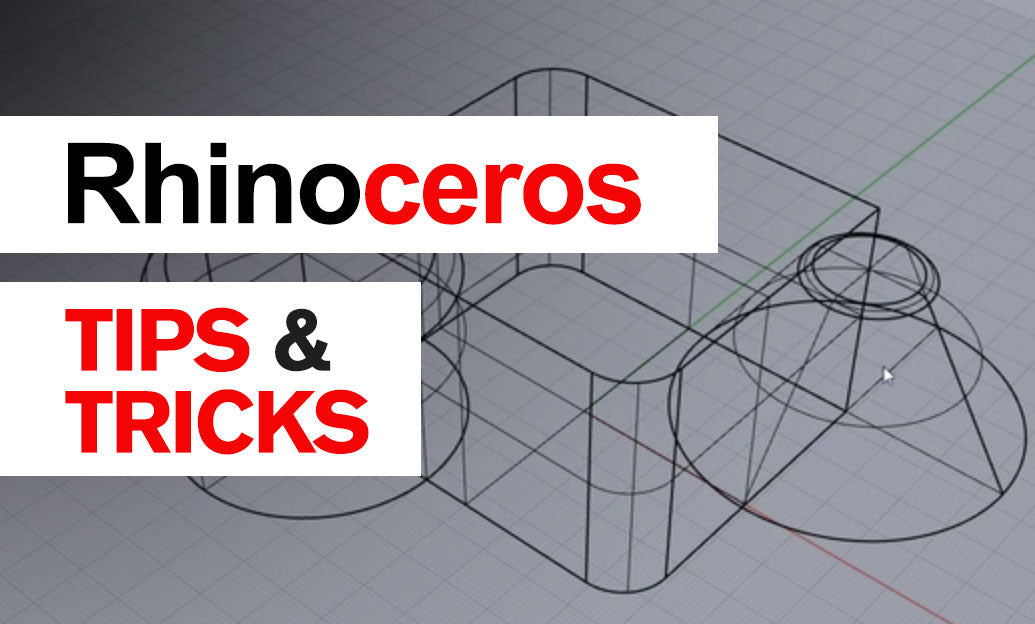

When your scene gets dense, switch the active viewport to Ghosted to see through geometry without hiding or isolating anything.
Fast ways to toggle Ghosted:
- Viewport label: right‑click the viewport name and choose Ghosted.
- Command line: type
SetDisplayModeand pickGhosted. - Assign a shortcut/alias (recommended):
- Ghosted:
!-SetDisplayMode _Viewport=_Active _Mode=_Ghosted - Shaded (back):
!-SetDisplayMode _Viewport=_Active _Mode=_Shaded
- Ghosted:
Where Ghosted excels:
- Assembly fit and interference checks without adding temporary sections.
- Routing paths for cables, ducts, and internal mechanisms.
- Placing hardware inside enclosures while maintaining exterior context.
- Snapping to interior features using Osnaps and SmartTrack with fewer hides/unhides.
- Architectural interiors: align furniture, MEP, and structure without cutting views.
Per‑object Ghosted (keep most of the scene Shaded):
- Select parts to visualize through, then run
SetObjectDisplayModeand choose Ghosted. - Use
RemoveObjectDisplayModeor set the object back to “Use Viewport” to revert. - Great for keeping context solid while “x‑raying” only critical components.
Tune Ghosted for clarity and performance:
- Options > View > Display Modes > Ghosted:
- Transparency: increase for deeper visibility; reduce for stronger silhouette reading.
- Edges and isocurves: thicken edges slightly; turn off isocurves if visuals feel cluttered.
- Shadows and AO: disable for speed; enable lightly for better depth cues.
- Backface settings: show a distinct color to avoid inside/out confusion.
- Per‑viewport: different viewports can use different modes (Perspective Ghosted, Top Shaded).
- Combine with ClippingPlanes for surgical inspection without losing whole‑model context.
Selection and snapping tips:
- Enable only the Osnaps you need (End, Mid, Center, Perp) to reduce accidental snaps through geometry.
- Use Selection Filters to prefer sub‑objects (faces/edges) when editing interiors.
- If clicking through is ambiguous, rotate slightly or use a crossing window to bias deeper picks.
Workflow patterns that save time:
- Map quick keys: for example, G = Ghosted, S = Shaded on the active viewport.
- Use per‑object Ghosted for transparent reference parts while you model opaque targets.
- Capture communication:
ViewCaptureToFilefrom Ghosted is ideal for explaining internals without full renders.
Need expert guidance, licensing, or add‑ons? Talk to NOVEDGE’s Rhino specialists. Explore Rhino options and plugins at NOVEDGE Rhino Collection and keep your visualization workflow sharp.
You can find all the Rhino products on the NOVEDGE web site at this page.
Also in Design News