Your Cart is Empty


Rhino 3D Tip: Essential Tips for Mastering Rhino 3D Interface and Basic Modeling Techniques
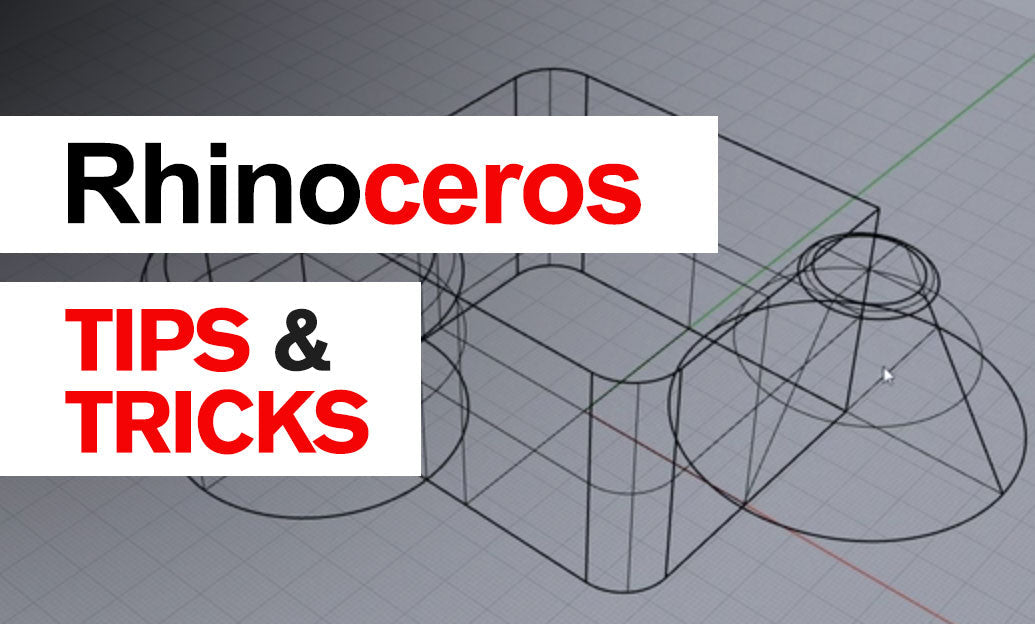

Rhino 3D is a powerful tool for 3D modeling, offering a flexible and intuitive interface that caters to both beginners and professionals. Mastering the basics is crucial to unlocking its full potential. Here are some essential tips to get you started:
Get Comfortable with the Interface
- Command Line Usage: Familiarize yourself with the command line at the top of the screen. Typing commands can be faster than navigating menus.
- Customize Toolbars: Tailor your workspace by adding or removing toolbars to suit your workflow.
- Viewport Navigation: Learn to navigate between different viewports (Top, Front, Right, Perspective) to view your model from various angles.
Understanding Basic Geometry Creation
- Primitives: Start by creating basic shapes like lines, polylines, circles, and rectangles using the Curve tools.
- Solid Modeling: Use the Surface and Solid tools to create extrusions, lofts, and revolved shapes.
- Editing Geometry: Modify your models using commands like Move, Rotate, Scale, and Trim.
Utilize Object Snaps and SmartTrack
- Object Snaps (Osnap): Enable Osnaps to accurately snap to key points like endpoints, midpoints, centers, and intersections.
- SmartTrack: Activate SmartTrack to create temporary reference lines and points, assisting in precise modeling.
Master the Gumball Tool
- Quick Transformations: Use the Gumball manipulator for on-the-fly moving, scaling, and rotating of objects directly in the viewport.
- Input Values: Click on the numerical fields near the Gumball to input exact transformation values.
Organize Using Layers
- Layer Management: Assign objects to layers to keep your model organized. This facilitates easy visibility control and model management.
- Color Coding: Use different colors for layers to quickly distinguish between various parts of your model.
Learn Essential Commands
- Undo/Redo: Use Ctrl+Z and Ctrl+Y to undo and redo actions, respectively.
- Copy: Duplicate objects using the Copy command for efficient modeling.
- Join/Explode: Combine curves or surfaces with Join, and separate them using Explode.
Practice Precision Modeling
- Grid and Snap Settings: Adjust the grid size and enable grid snapping for precise placement of objects.
- Coordinate Input: Enter exact coordinates for points and objects to achieve high accuracy.
Explore Help Resources
- In-Software Help: Press F1 to access Rhino's comprehensive help documentation whenever you're unsure about a command.
- Online Tutorials: Visit the Rhino Learning Resources for tutorials and guides.
- NOVEDGE Resources: Check out NOVEDGE for additional tutorials, tips, and to purchase Rhino 3D software.
By dedicating time to understand these fundamental aspects of Rhino 3D, you'll establish a strong foundation for more advanced modeling techniques. Remember, consistent practice is key to mastery. As you become more proficient, you'll find that Rhino's capabilities are vast, allowing for incredible creativity and precision in your 3D modeling projects.
You can find all the Rhino products on the NOVEDGE web site at this page.
Also in Design News