
Your Cart is Empty


Rhino 3D Tip: Best Practices for Clean Extrude and Revolve Modeling in Rhino
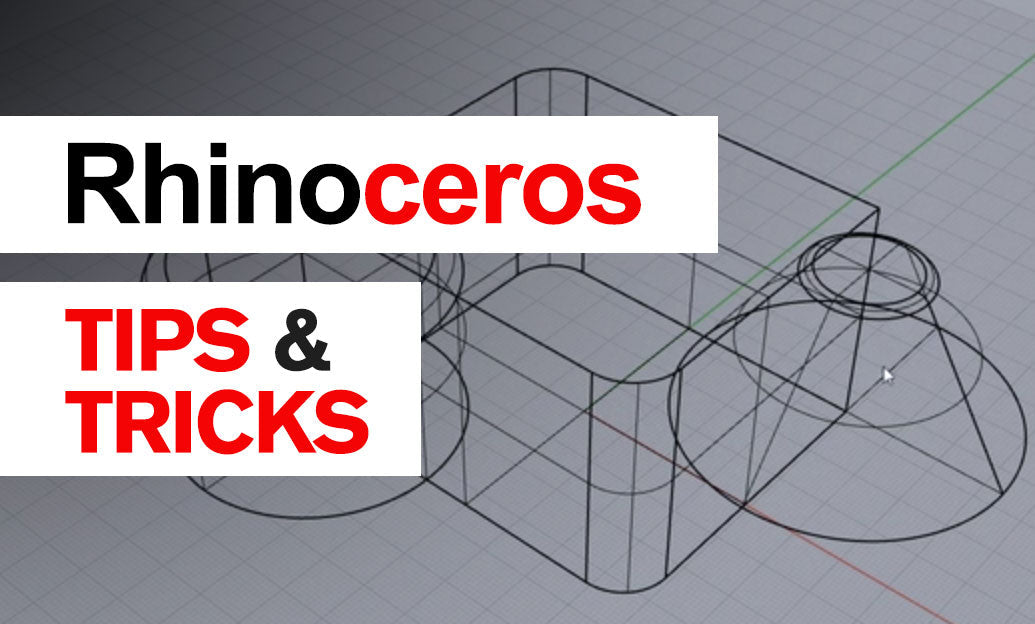

Revolve and Extrude are two of the fastest ways to turn clean curves into production-ready geometry in Rhino, yet they are often used too casually. A small decision at the profile stage can determine whether the result becomes a clean solid, a troublesome polysurface, or geometry that later fails during filleting, shelling, or export.
A reliable workflow starts with choosing the right command for the shape logic:
- Use Extrude when the section remains constant along a straight direction.
- Use Revolve when a profile rotates around an axis to create radial or rotational geometry.
- Use closed curves whenever you want solid results with minimal cleanup.
For Extrude, one of the biggest time-savers is understanding the output options before committing:
- Solid=Yes caps the result automatically when the profile supports it.
- Direction gives more control than dragging freely in perspective.
- BothSides is useful when you want geometry centered on the original curve or surface edge.
- ExtrudeCrv, ExtrudePlanarCrv, and ExtrudeSrf each serve different purposes, so selecting the most appropriate version avoids unnecessary edits later.
A common best practice is to build the profile in the correct construction plane first. If the curve is not planar when you expect it to be, the extrusion may not cap correctly. Before extruding, quickly check:
- Are all curve segments joined properly?
- Is the curve truly closed?
- Is it planar?
- Are there duplicate segments or tiny gaps?
For Revolve, accuracy depends heavily on the profile and axis definition. The profile should represent a precise section of the object, and the axis should be placed intentionally rather than approximated by eye. This is especially important for bottles, turned parts, fixtures, furniture components, and many product design forms.
- Use snaps to define the axis exactly.
- Revolve 360 degrees for complete rotational forms.
- Use partial revolutions for open forms, cutaways, or design studies.
- Keep the seam location in mind, since it can affect downstream surfacing and trimming operations.
One advanced tip: when modeling for manufacturing or downstream CAD exchange, avoid overcomplicating profiles. A profile with unnecessary control points or fragmented segments can still revolve or extrude, but the resulting surfaces may be harder to edit cleanly. Simpler input usually creates better output.
Another practical habit is to inspect the result immediately:
- Run What to confirm whether you created a surface, polysurface, or closed solid.
- Use ShowEdges if a supposedly closed result behaves like an open object.
- Apply shaded or rendered display to spot unexpected creases or cap issues early.
If you are building a library of repeatable modeling techniques, these two commands deserve special attention. They are foundational tools for fast concept development and for highly controlled technical modeling. Used well, they reduce rebuild time and improve model quality at every later stage.
For Rhino users looking to strengthen everyday workflows, NOVEDGE’s Rhino resources are a great place to explore tools, upgrades, and professional software options. If your work expands into advanced design workflows, the broader NOVEDGE catalog is also worth reviewing for complementary applications and plugins.
You can find all the Rhino products on the NOVEDGE web site at this page.
Also in Design News



