Your Cart is Empty


DWG Exchange Without Surprises: 5 AutoCAD LT Compatibility Levers for Versioning, Dependencies, Units, and Clean Handoffs
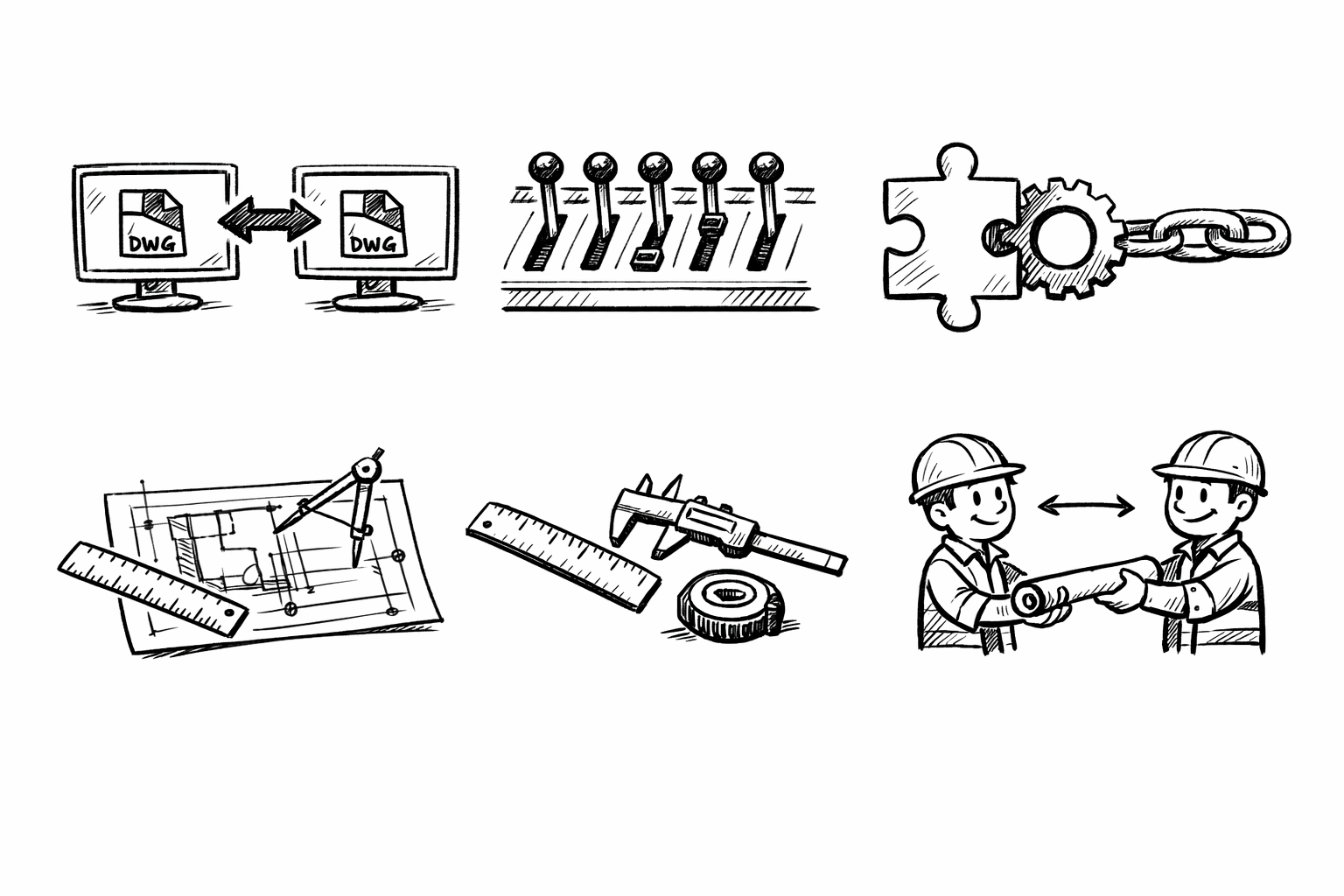


DWG files feel universal until they leave your workstation. In AutoCAD LT, “DWG exchange without surprises” is harder than it looks because LT sits inside a larger ecosystem: different DWG years, different object enablers, different plotting standards, and downstream tools that interpret geometry with their own rules. What follows is a practical set of five compatibility levers you can control before you send or receive DWGs so the file behaves predictably on the other end.
Lock the DWG “save-as” version to match the recipient (and verify it)
Define the target environment up front
Before you touch anything in the file, establish what “compatible” actually means for the recipient. DWG compatibility is not just about whether the file opens; it is about whether it opens without visual regression, scaling anomalies, missing annotation, or plotting differences.
- Recipient’s authoring tool: confirm whether they are using full AutoCAD, AutoCAD LT, a vertical (Architecture, Civil 3D, Plant), or a third-party DWG editor. Get the version year (for example 2018 versus 2024) because object handling and annotation behavior can vary by release.
- Downstream consumers: identify whether your DWG will be imported into BIM tools, CAM systems, CNC nesting software, laser cutters, GIS platforms, or visualization pipelines. These tools often tolerate “openable” DWGs but fail on subtle items like duplicate geometry, unit ambiguity, or proxy objects.
When these requirements are not explicit, teams tend to default to “current version,” and the recipient is forced into a reactive workflow: recover prompts, missing references, plot style mismatches, and manual rework. The goal is to eliminate those assumptions.
Standardize the outgoing DWG format
A reliable practice is to treat DWG format as a project rule rather than a per-person decision. The most stable approach is to pick the oldest acceptable DWG year that still supports your needed features and deliver in that format consistently.
- Set a project rule: always deliver in the oldest acceptable DWG version agreed with partners. This reduces forward-compatibility risk for recipients who do not upgrade in lockstep.
- Use Save As to the agreed DWG year rather than relying on “current,” especially if you are collaborating across organizations.
In practice, this becomes a simple contract: “All external deliverables are saved as AutoCAD 2018 DWG,” or similar. It is not glamorous, but it removes a major source of friction.
Compatibility check before delivery
Saving to an older DWG is necessary, but not sufficient. You also need to confirm that the file you wrote is the file you intended to deliver.
- Re-open the saved DWG in AutoCAD LT to confirm that no unexpected proxy/graphics anomalies appeared during the write process.
- If your workflow allows, run a quick round-trip check by importing the DWG into an internal viewer or the recipient’s tool (or an equivalent) and confirm fidelity for layers, lineweights, annotation, and xrefs.
This short verification step is where many “it looked fine before I sent it” problems are caught: missing fonts, exploded dimensions, hatch patterns changing density, or xrefs that resolved locally but not in a packaged deliverable.
Common “surprise” mitigations
Even when the DWG year is correct, behavior can still diverge across releases and profiles. A few preventative checks reduce the potential for surprises:
- Avoid leaning on features that may behave differently by release, such as edge cases in annotation scaling or dimension style behavior changes. If a deliverable must be conservative, validate in a simplified layout setup.
- Confirm that the file opens cleanly without “recover” prompts on a clean workstation/profile. A file that requires recovery is already a trust-breaker for recipients and can insert doubt into their downstream automation.
The underlying principle is straightforward: agree on the DWG year, save to it deliberately, then verify the saved deliverable—not your working file.
Package dependencies intentionally (fonts, plot styles, external references)
DWG exchange problems are frequently dependency problems in disguise. A file can open perfectly yet plot incorrectly, shift text, or show broken references because the DWG was separated from the ecosystem it expects.
Fonts: the silent layout-breaker
Fonts change more than appearance. They alter text width, line breaks, and annotation extents, which affects leaders, dimensions, tables, and title blocks. When recipients do not have the same fonts installed, substitution can cause the entire sheet to reflow.
- Prefer standard SHX fonts when predictable interchange is the priority, or ensure comparable font availability on the recipient side when using custom fonts.
- Establish a fallback mapping agreement (which font substitutes for which) to prevent reflow chaos. Make the mapping explicit rather than letting each workstation decide.
Also consider licensing: even when you want to include font files, redistribution may not be permitted. In that case, provide a font list and approved substitutes so the recipient can install or map appropriately.
Plot styles and page setups (CTB/STB)
Plotting is where trust is won or lost. Two valid drawings can produce radically different plotted output if the plot style system differs.
- Confirm whether the project uses CTB or STB and deliver matching plot style tables. If you send a CTB-based file to an STB-based environment (or vice versa), you are effectively outsourcing interpretation of lineweights and screening.
- Include named page setup guidance (paper sizes, plot areas, plot scale) so recipients do not “ad hoc” plot. The less they improvise, the more consistent the output.
When you define page setups clearly, you turn printing from a subjective task into a repeatable procedure. That matters for approvals, permits, fabrication, and QA documentation.
External references (Xrefs), images, PDFs, point clouds (if applicable)
Xrefs and underlays are essential for modular drawing management, but they are also the most common source of “it’s missing half the drawing” problems on the recipient side.
Decide delivery mode: bind vs keep as separate referenced package
Choose the delivery mode intentionally based on how the recipient will work.
- When to bind: single-file handoff, archival deliverables, or when consultants cannot reliably manage paths and support folders. Binding reduces path risk and can simplify the recipient’s opening experience.
- When not to bind: large projects with shared base files, multi-discipline coordination, or workflows where the recipient needs the reference structure intact for updates. Keeping references separate preserves modularity and reduces duplication.
Binding can be safer for simple exchanges, but it may create layer naming complexity and can obscure responsibilities when multiple parties coordinate on the same base. Keeping references separate can be cleaner, but only if you package correctly.
Path strategy to eliminate broken links
Most broken xrefs are not “missing files”; they are path mismatches.
- Convert to relative paths where feasible so the package can be moved as a folder without breaking references.
- Provide a clean folder structure and avoid machine-specific absolute paths such as user profile directories or mapped drives that only exist in your office.
The goal is to make your deliverable relocatable: the recipient should be able to unzip it anywhere and still open the DWG with all references resolved.
Delivery packaging checklist (bulletproof handoff)
A consistent packaging checklist prevents accidental omissions and reduces back-and-forth communication. A solid package typically includes:
- DWG(s)
- CTB/STB files plus any PMP/PC3 guidance if required by the recipient
- Fonts list (and licensing notes if fonts cannot be redistributed)
- Xref folder plus images/PDF underlays and any support files
- A one-page “How to plot / how to open” note for recipients
That one-page note sounds unnecessary until you see how much time it saves. It can specify page setups to use, expected plot device (PDF), and any special steps such as loading missing plot style tables.
Reduce “intelligence surprises”: proxies, custom objects, and AEC content
Another major category of interoperability issues comes from “intelligent” objects. Many DWGs contain objects that appear normal in the authoring environment but open as proxies—or behave differently—in LT or third-party tools.
Identify objects that won’t behave in LT or non-authoring tools
DWG is a container. What matters is the object types inside it.
- Proxy objects created by industry toolsets (Architecture, Civil, Plant, Map 3D) or third-party add-ons can appear as proxies when opened without the correct object enablers.
- Underlays and DGN/DWF/PDF behavior can differ across tools, including clipping, lineweight interpretation, and plot output consistency.
AutoCAD LT is intentionally streamlined; it does not author certain vertical-specific objects. If the recipient cannot resolve those objects, they may lose editability, snap behavior, and sometimes plot fidelity.
Decide intent: preserve intelligence vs deliver dumb geometry
Interoperability becomes manageable when you decide what the recipient actually needs.
- When it’s okay to explode/convert: fabrication exports, background references, consultant base plans, or any scenario where the recipient only needs stable geometry for coordination or plotting.
- When it’s not okay: when objects carry parameters, tags, classifications, or future edit intent that the recipient must preserve. Converting to dumb geometry in those cases can destroy value and create rework later.
This is not a purely technical decision; it is a workflow contract. A “dumb” deliverable can be the most reliable one, but only if everyone agrees that intelligence is not required downstream.
Implement a “least surprise” deliverable format
A pragmatic approach for mixed environments is a two-tier deliverable strategy.
- Provide a clean 2D DWG for reference/plotting that is flattened/converted as needed to avoid proxies, and a native/authoring DWG if the recipient needs editable intelligence.
- Include a short object disclaimer stating what will arrive as proxy, what was flattened, and what was converted.
This approach reduces ambiguity. Recipients who just need a background can use the clean 2D file; recipients who need the object intelligence can work from the authoring version with the appropriate toolset.
Verification step
Do not assume that “it looked fine on my machine” means it will behave elsewhere. Verify from the perspective of the recipient.
- Check for proxy warnings on open and ensure critical geometry is not proxy-dependent.
- Confirm that view and plot output match expectations, especially for lineweights, hatches, and annotation.
This verification is particularly important for hatches (pattern scale differences can produce moiré-like density changes) and for lineweights (plot style dependencies or display settings can mask issues until print time).
Standardize units, insertion behavior, and coordinate expectations
Many DWG exchanges fail in subtle ways because unit intent is assumed rather than defined. The result is drawings that open “correctly” but insert incorrectly, scale unpredictably, or land miles away from the origin.
Units are not “just a number”
Units influence insertion scaling, annotation scale expectations, and downstream interpretation by CAM, GIS, and BIM importers. A file drawn 1:1 in millimeters is fundamentally different from one drawn 1:1 in inches, even if the geometry looks identical on-screen.
- Confirm drawing units and scaling intent (mm vs inches vs meters) before exchange.
- Avoid “it will scale on insert” assumptions and document the unit basis explicitly in your handoff note.
If you have ever received a DWG that imported at 25.4x or 0.03937x scale, you have experienced the cost of unit ambiguity. It is one of the easiest problems to prevent and one of the most expensive to diagnose late.
Insertion and scaling pitfalls
Even when the drawing units are correct, insertion behavior can still drift due to inconsistent base points, block definitions, and reference practices.
- Ensure blocks and external references behave predictably when inserted into other drawings.
- Use consistent base points and avoid ambiguous placements such as “near the origin but not quite,” which can break alignment when someone uses precise insertion workflows.
A consistent base point strategy (for example, project grid intersection, building corner, or a defined survey point) can eliminate repeated manual alignment efforts across disciplines.
Coordinates: the origin, large coordinates, and precision trade-offs
Coordinate strategy is often where architectural and site/civil expectations collide. Some projects prefer a local building grid near the origin for precision and performance; others require real-world coordinates for GIS, surveys, and georeferenced deliverables.
- Agree on coordinate system strategy: local building grid versus real-world coordinates.
- Recognize that large coordinate values can cause display or precision issues in some pipelines. If the project must remain in real-world coordinates, provide explicit guidance for recipients and downstream tools.
The practical outcome is that you should not surprise the recipient with a file drawn far from 0,0,0 without warning. Some environments will show jitter, snapping artifacts, or degrade curve fidelity when values get very large.
Quick recipient test protocol
A fast exchange validation can prevent days of coordination churn. Build a small protocol into your handoff process.
- Ask the recipient to insert your DWG into a blank template to confirm scale, rotation, and position are correct.
- If discrepancies occur, provide the “known good” insertion settings: units, insertion point, and rotation expectations.
This is especially useful when multiple consultants are federating files into a master drawing. One mis-scaled base file can cascade into misaligned overlays, incorrect quantities, or fabrication errors.
Clean and audit before you send: purge, overkill, layer discipline, and plot reality checks
Even perfectly compatible DWGs can still be painful to use if they are bloated, inconsistent, or visually misleading when plotted. A final cleanup pass improves performance, reduces risk, and increases recipient confidence.
File hygiene to prevent downstream performance and display issues
Cleaning is not just about file size; it is about preventing accidental behavior.
- Purge unused layers, linetypes, and blocks to reduce clutter and minimize accidental activation of irrelevant content.
- Remove duplicate or overlapping geometry where it matters, especially for CNC, laser, or export workflows where duplicates can cause double cuts or incorrect toolpaths.
Recipients often inherit your drawing database quirks. A clean database reduces the chance that their automation scripts, selection filters, or exports produce unpredictable results.
Layer discipline and standards
Layer standards are both a communication tool and a protection mechanism. When layering is inconsistent, recipients will waste time just figuring out what is safe to edit.
- Use freeze/lock conventions and layer naming rules to prevent accidental edits.
- Make deliverable layers explicit: what is background, what is contract/documentation, and what is reference-only.
If your package includes multiple DWGs, consistent layer discipline across them is even more important. It is the difference between a set that can be quickly integrated and one that requires manual triage.
Text and annotation legibility checks
Annotation is where design intent becomes construction or fabrication intent. Even slight changes in annotative scaling or text style behavior can change meaning.
- Validate annotative behavior (if used) across viewports so text appears at intended plotted size.
- Confirm that dimensions and leaders remain associative where intended, so edits do not silently break annotation logic.
Associativity matters because it protects intent through revisions. If a recipient has to edit geometry and annotation no longer follows, the drawing becomes fragile and error-prone.
Plot and visual verification (the “what you see is what they’ll print” step)
Plot verification is the last line of defense. It converts “looks right on my monitor” into “prints right with the provided standards.”
- Plot to PDF using the deliverable plot style and page setups.
- Compare PDF output to on-screen intent: lineweights, screening, hatch density, and linetype scales.
If the PDF is correct using the same CTB/STB and page setups you are sending, you have a strong baseline. The recipient may still choose different plotting methods, but you have provided a verified reference output.
Minimal “handoff report” to attach
When issues do occur, a short, consistent handoff report turns troubleshooting from guesswork into a checklist. Include:
- DWG version/year
- Units
- CTB/STB name
- Fonts used
- Xref status (bound/unbound) and path expectations
- Last plot verification date
This report is not bureaucracy. It is metadata that makes your deliverable auditable and significantly reduces re-interpretation by recipients.
Conclusion
A “no surprises” DWG exchange in AutoCAD LT is mostly about controlling assumptions: version, dependencies, object types, units/coordinates, and cleanliness. When you standardize the DWG save-as year, package support files deliberately, manage proxies and intelligent objects with intent, define units and coordinate expectations explicitly, and run a consistent audit and plot verification, your deliverables become predictable. The most effective exchanges pair a fixed saving standard with a repeatable packaging and verification checklist, so opening and plotting the file is routine rather than risky.
Also in Design News