Your Cart is Empty


Rhino 3D Tip: SmartTrack workflow for precise positioning in Rhino
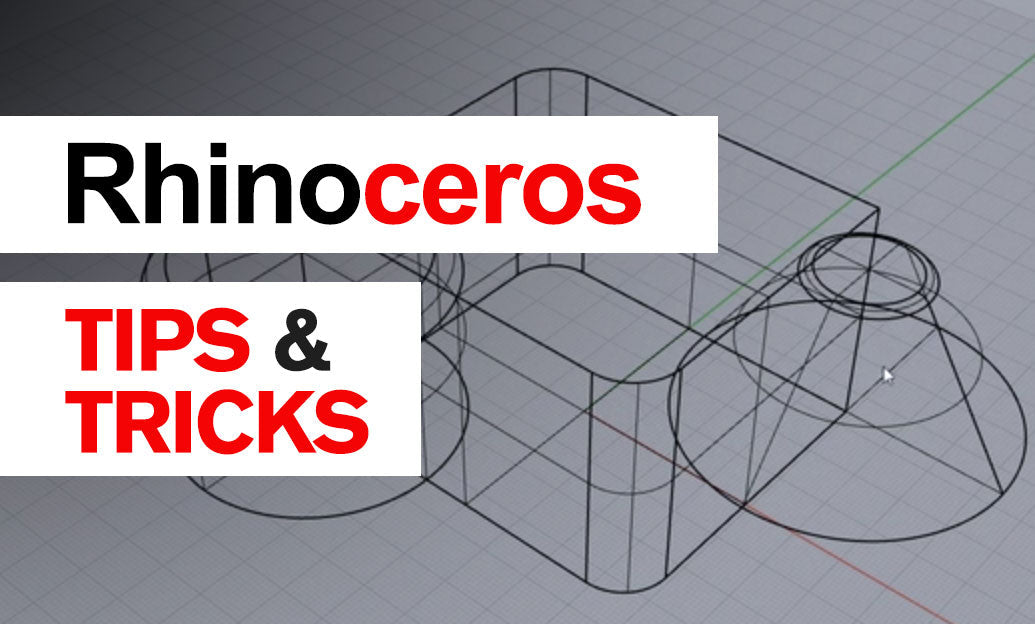

SmartTrack turns temporary points and guides into precise references for moving objects with confidence. Here’s how to make it a daily habit for accurate edits in Rhino.
Enable and configure:
- Turn on SmartTrack from the status bar or run the SmartTrack command.
- Windows: Tools > Options > Modeling Aids > SmartTrack. Mac: Rhino > Preferences > Modeling Aids > SmartTrack.
- Keep Object Snaps lean (e.g., End, Mid, Cen, Perp) to reduce visual clutter and improve tracking stability.
Placing SmartPoints efficiently:
- Hover briefly over an Osnap point to register a SmartPoint; Rhino will draw temporary guides (SmartLines) through it.
- Accumulate two or more SmartPoints to get guide intersections—ideal for exact target locations without construction geometry.
- If the screen gets busy, momentarily toggle SmartTrack off and back on to clear references.
Accurate moves with SmartTrack:
- Move/Copy: Pick a reliable base point (use Osnaps), then hover over key references to seed SmartPoints. Slide along the highlighted SmartLine or to a guide intersection; click to place.
- Type distances while a SmartLine is highlighted to move precisely along that direction (e.g., enter 25 for 25 units; add units if needed: 25mm, 1.5in).
- Use Tab to lock the current direction, then enter a distance for bulletproof linear placements.
- Combine with Ortho or Planar for predictable axial or CPlane-constrained moves.
3D alignment strategies:
- Set a local CPlane (CPlane > Object/Surface/3Points) before delicate moves on angled parts; SmartTrack guides will align to that working plane.
- For vertical displacements in perspective views, lock a horizontal guide first, then Tab-lock the new direction or use Planar to avoid drifting off-axis.
Advanced snap combos that shine with SmartTrack:
- From: Use the From snap to define an offset start, then follow a SmartLine for exact offsets from known geometry.
- Between: Snap precisely to the midpoint between two references; SmartLines help visualize and confirm the target before you click.
- AlongParallel: Track a known edge, then run AlongParallel to replicate its direction on another part with SmartTrack confirmation.
Using SmartTrack with Gumball:
- When dragging a Gumball arrow, align your view so a SmartLine is visible in the intended direction; type a distance to commit.
- For compound moves, consider Move with SmartTrack first, then use Gumball for incremental tweaks.
Cleanliness and performance:
- Limit simultaneous Osnaps to the few you actually need for the task at hand.
- If guides become confusing, restart the command or toggle SmartTrack to clear—stay intentional with each new set of references.
Why it matters: SmartTrack replaces ad‑hoc construction geometry with fast, disposable guides, reducing clicks and rework while improving positional accuracy. Mastering it pays off immediately in assemblies, architectural alignments, and product details.
Need Rhino, upgrades, or add‑ons? Explore Rhino at NOVEDGE. For expert advice on workflows, plugins, and licensing, the NOVEDGE team is a great resource.
You can find all the Rhino products on the NOVEDGE web site at this page.
Also in Design News